How to Convert WebP to JPG (and Images to WebP)
You saved an image from a website and it came down as a .webp file — and now your photo editor, CMS, or upload form refuses it. This is one of the most common image annoyances today, and the fix takes about ten seconds. This guide covers both directions: WebP → JPG/PNG for compatibility, and JPG/PNG → WebP for dramatically smaller files.
We'll use the free WebP Converter. It converts in your browser, so your images are never uploaded anywhere.
Why do so many downloads come as WebP?
WebP is Google's modern image format. It compresses roughly 25–35% smaller than JPEG at the same visual quality and supports transparency like PNG, so most large websites now serve it to speed up their pages. Browsers handle WebP fine — but plenty of desktop apps, older photo editors, and upload forms still don't accept it. (For a deeper comparison of the formats, see PNG vs JPEG vs WebP.)
Convert WebP to JPG or PNG
- Open the WebP Converter and drop in your
.webpfiles — it detects them and switches to compatibility mode automatically. - Choose WebP to JPG for photos, or WebP to PNG if the image has transparency or sharp text/graphics.
- For JPG, set the quality — 85% is visually identical to the original for almost anything.
- Download each file, or grab the whole batch as a ZIP.
JPG or PNG? Rule of thumb: photos → JPG (much smaller); screenshots, logos, anything with transparency → PNG (lossless, keeps the alpha channel). Note that JPG has no transparency — transparent areas are flattened onto a white background.
Convert JPG or PNG to WebP
Going the other way is how you make a website faster:
- Drop in your JPG or PNG images and keep the To WebP tab selected.
- Set the quality slider — 80–90% is the sweet spot where photos look identical but files shrink by a third or more.
- Check the before/after size shown on every file, then download.
If a photo somehow comes out larger as WebP (rare, but possible with already heavily-compressed JPGs), the tool shows the size change in amber so you can just keep the original.
Does converting lose quality?
- WebP → PNG is lossless: what was in the WebP is exactly what you get.
- WebP → JPG re-encodes, but at 85%+ quality the difference is invisible in practice.
- JPG/PNG → WebP is lossy by default; use quality 80–90 for photos. For pixel-perfect graphics, WebP isn't the right target — keep PNG.
One thing no converter can do: restore detail the original compression already threw away. Converting a low-quality JPG to WebP (or vice versa) won't make it look better — only smaller.
Privacy note
Most "free online converters" upload your images to their servers. The WebP Converter runs entirely in your browser using the HTML canvas API — nothing leaves your device, which also means it works offline once the page is loaded and there's no file size limit beyond your device's memory.
Need to shrink images further after converting? Pair it with the Image Compressor or scale them down with the Image Resizer.
Related Articles
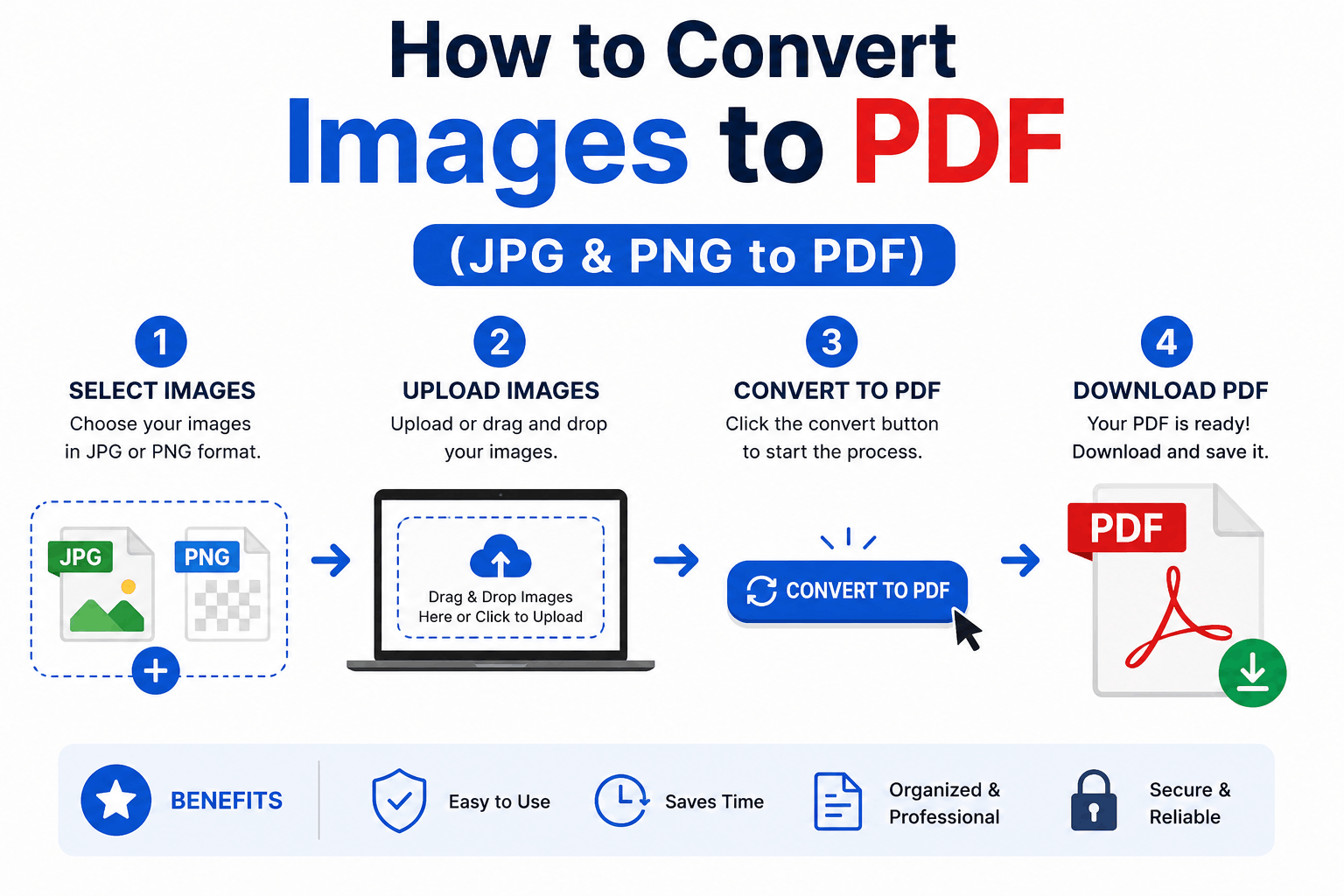
How to Convert Images to PDF (JPG & PNG to PDF)
Turn one or many JPG, PNG or WebP images into a single, tidy PDF — with the right page order, size and margins. Free and entirely in your browser.
How to Edit a PDF for Free in Your Browser
Reorder, rotate and delete pages, add text and highlights, sign documents and fill forms — all for free in your browser, with no upload and no watermark.
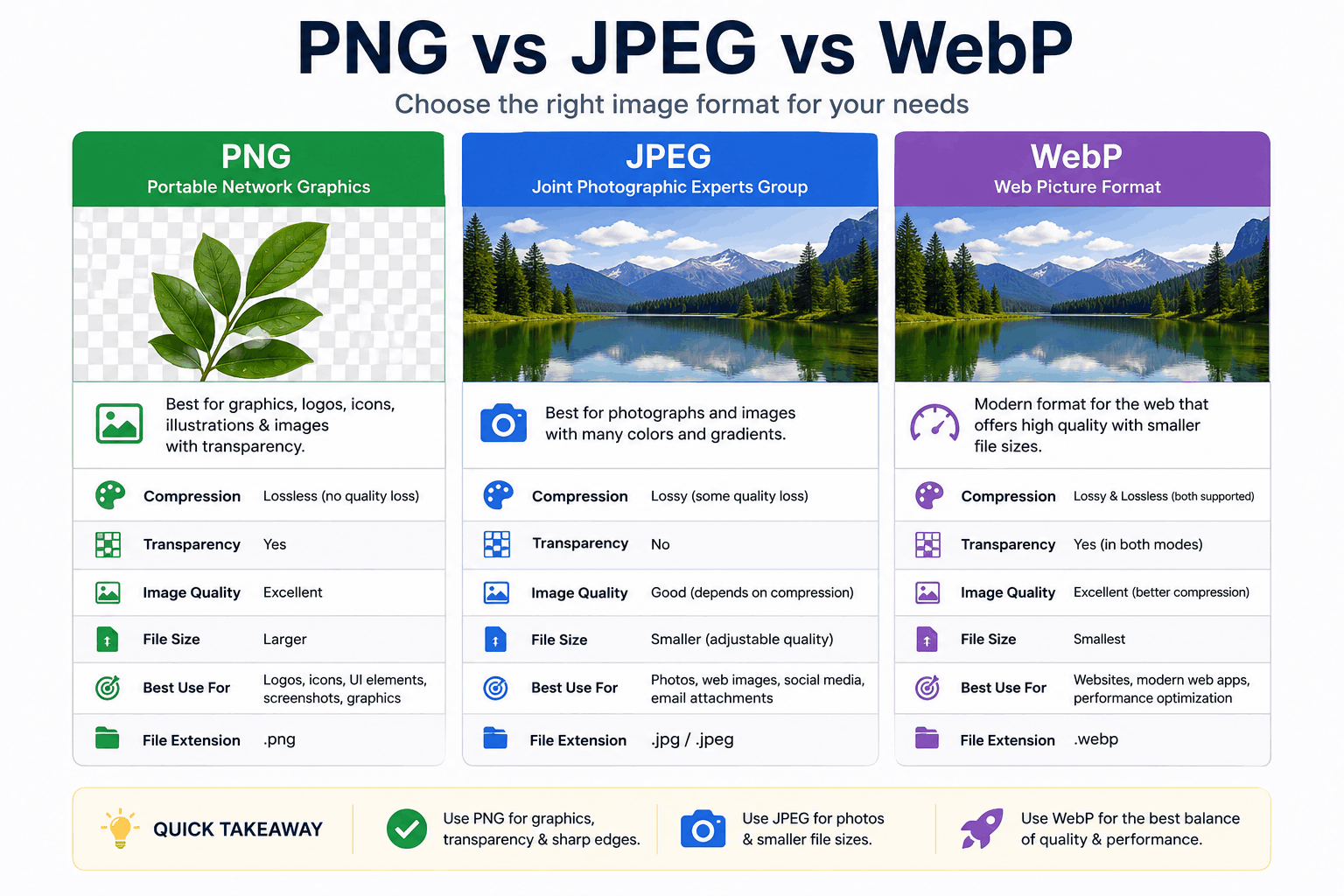
PNG vs JPEG vs WebP: Which Image Format Should You Use?
PNG, JPEG and WebP each win in different situations. Here's a clear, practical breakdown of when to use each — with real guidance on quality, transparency, and file size.