How to Convert Images to PDF (JPG & PNG to PDF)
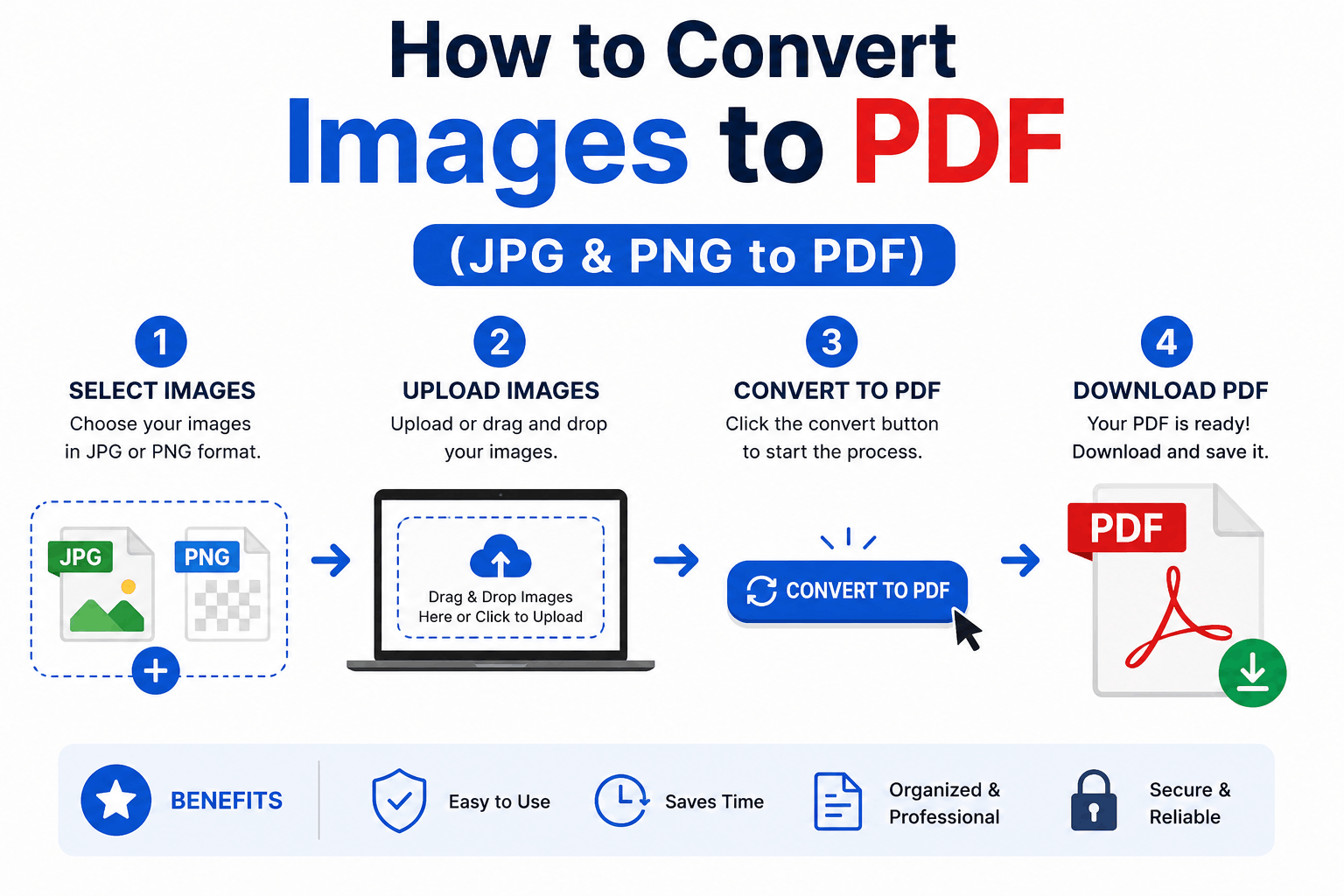
Combining images into a single PDF is one of those everyday tasks that comes up constantly — submitting scanned receipts, sending a set of photos as one document, turning slides or screenshots into a shareable file.
We'll use the free Image to PDF tool, which builds the PDF in your browser — so your images are never sent to a server.
Why convert images to PDF at all?
- One file instead of many. A PDF keeps a set of images together in a fixed order.
- Consistent presentation. Pages render the same everywhere.
- Forms and submissions. Many portals only accept PDFs.
Step by step
- Open Image to PDF and add your images.
- Reorder the images by dragging the thumbnails.
- Choose a page size that fits your needs.
Keeping it private
Receipts, IDs, contracts and medical documents shouldn't be uploaded to an unknown server.
Related Articles
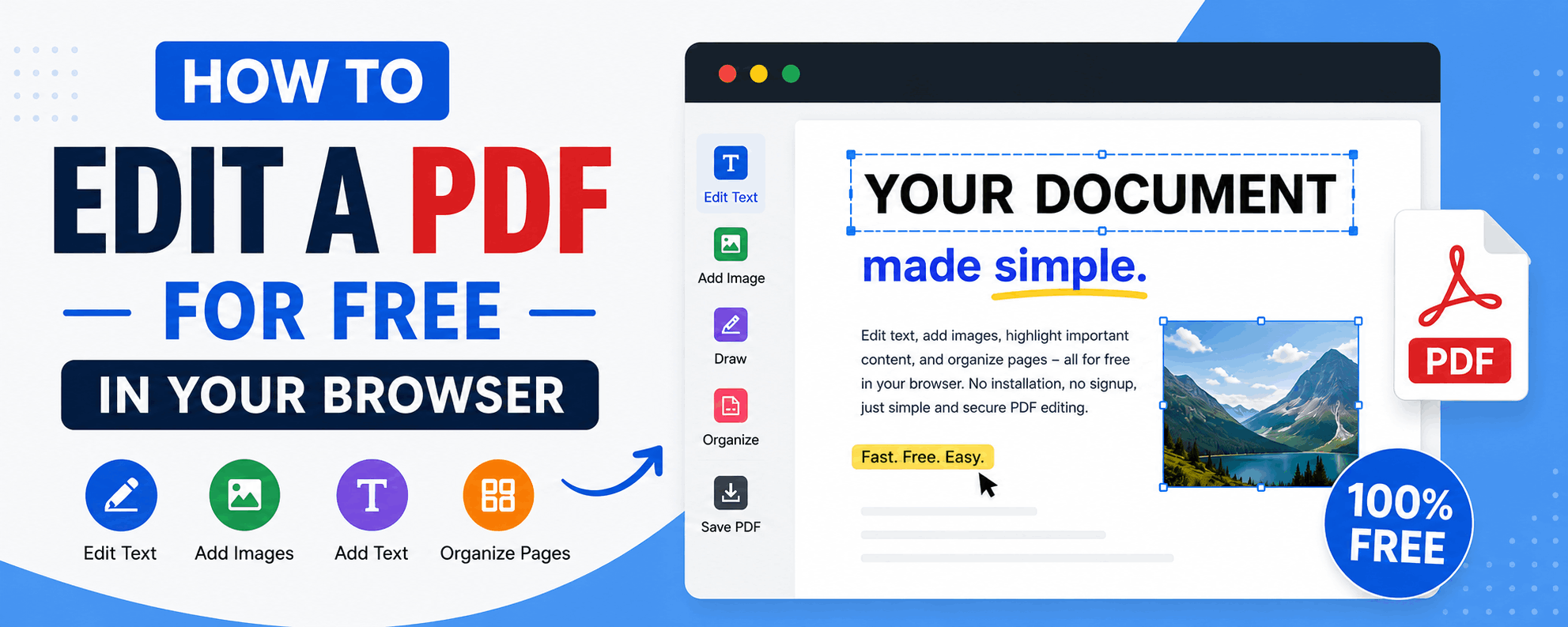
How to Edit a PDF for Free in Your Browser
Reorder, rotate and delete pages, add text and highlights, sign documents and fill forms — all for free in your browser, with no upload and no watermark.
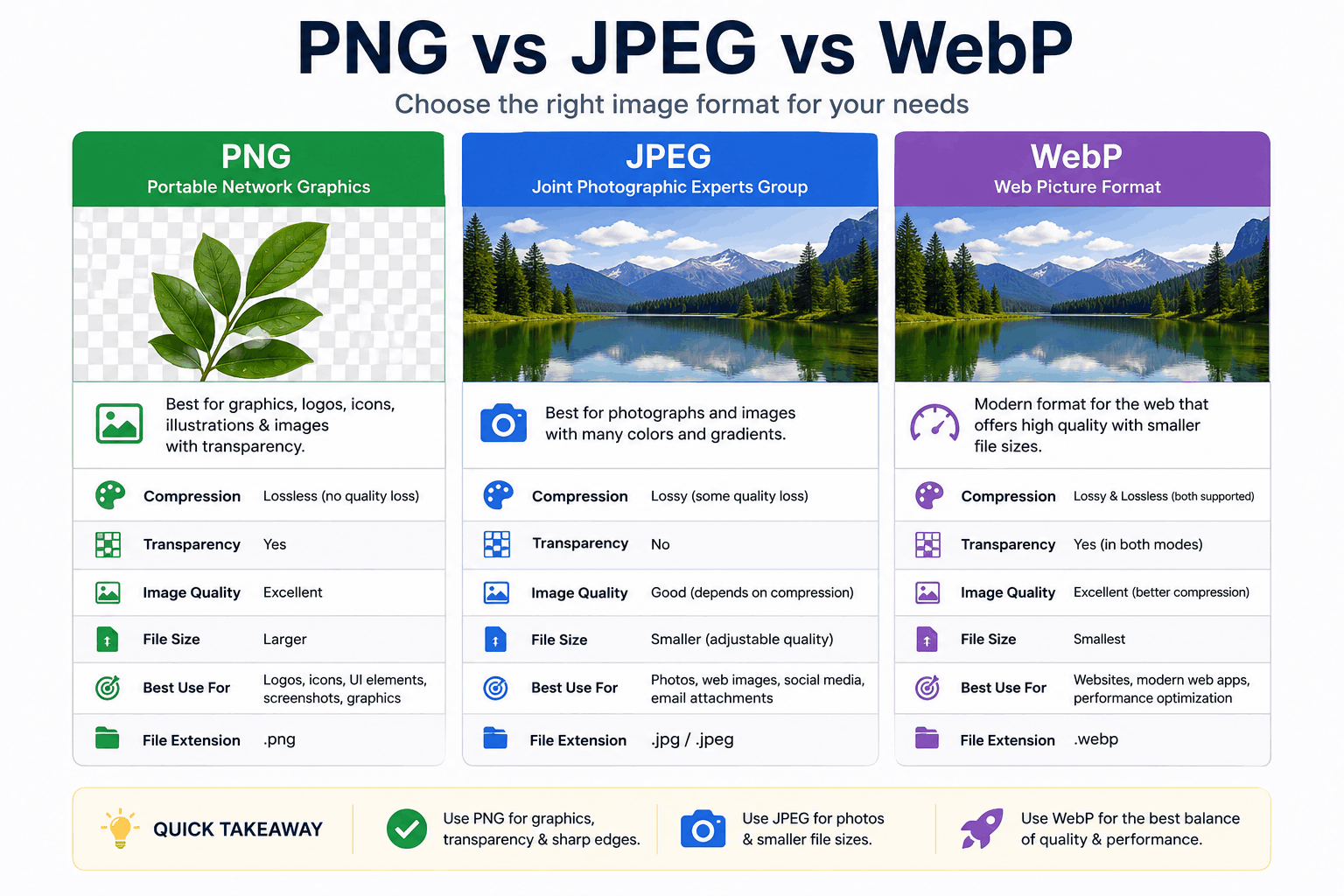
PNG vs JPEG vs WebP: Which Image Format Should You Use?
PNG, JPEG and WebP each win in different situations. Here's a clear, practical breakdown of when to use each — with real guidance on quality, transparency, and file size.
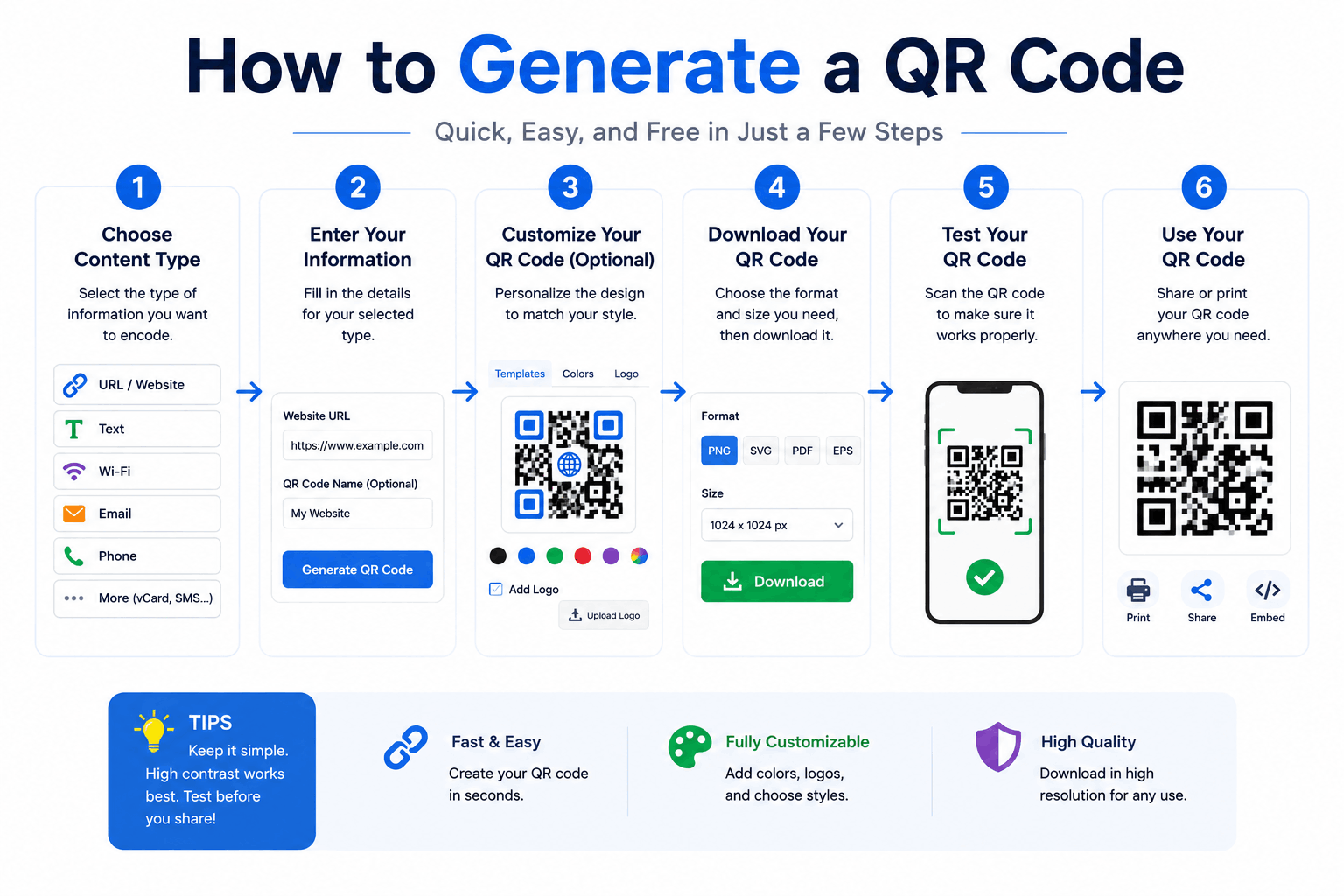
How to Generate a QR Code (Free, No Expiry)
Create QR codes for links, WiFi, text and more — and learn the practical tips (size, contrast, error correction) that make them actually scan reliably.