How to Edit a PDF for Free in Your Browser
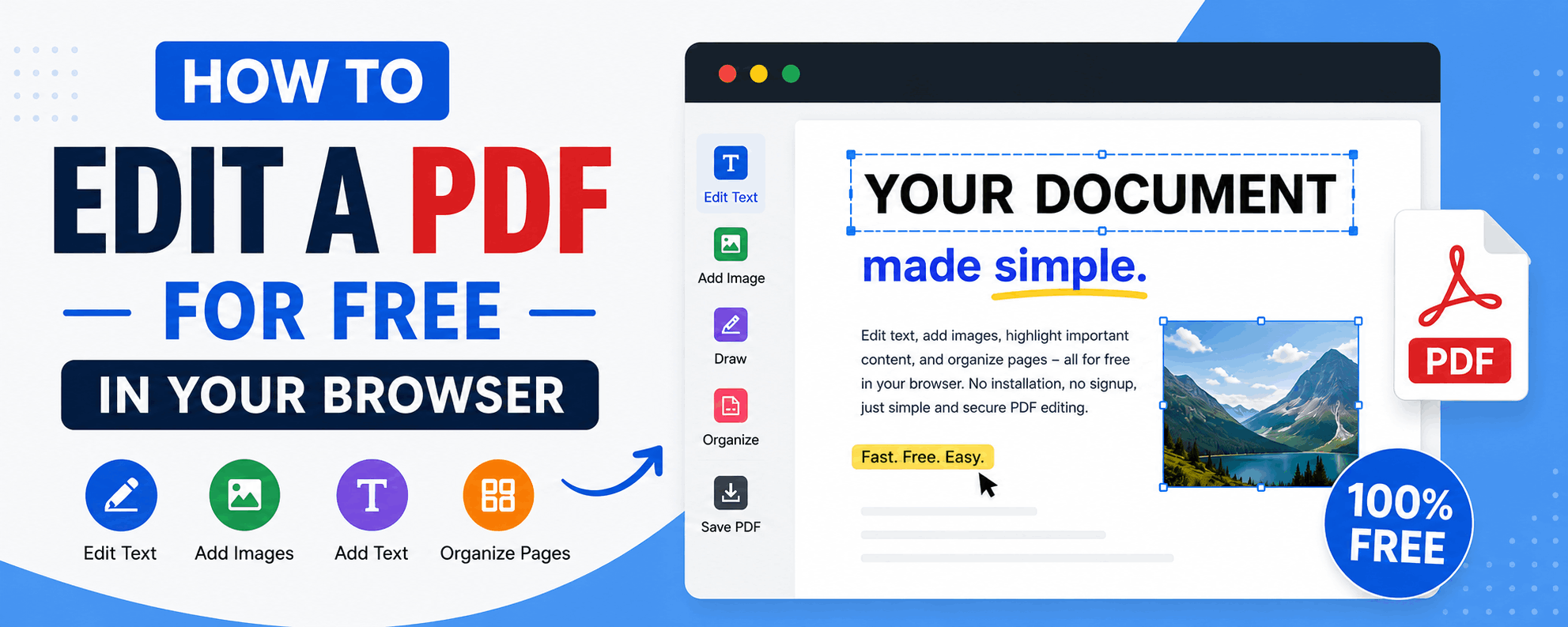
"Edit a PDF" means different things to different people — rearranging pages, scribbling a note, adding a signature, or filling in a form. The bad news is that the big-name PDF editors are expensive and many "free" ones slap on watermarks or make you upload sensitive documents. The good news: you can do all of the above for free, right in your browser, with nothing uploaded.
This guide walks through the free PDF Editor, which keeps everything on your device — important for contracts, IDs and anything confidential.
What "editing" a PDF actually involves
PDFs weren't designed to be edited like a Word document, so editing usually falls into four buckets:
- Organizing pages — reorder, rotate, delete, duplicate or extract pages.
- Annotating — add text boxes, highlights, freehand drawing or images on top of a page.
- Signing — draw or upload a signature and place it where it belongs.
- Filling forms — type into existing PDF form fields.
The PDF Editor handles all four from one place.
1. Organize pages
Open your PDF in the Pages tab and you'll see a thumbnail of every page. From there you can:
- Reorder — drag thumbnails into the sequence you want.
- Rotate — fix sideways scans 90° at a time.
- Delete — remove pages you don't need.
- Duplicate — repeat a page.
- Extract — select pages and export just those as a new PDF.
You can even open several PDFs at once and combine their pages — effectively merging documents while you reorganize.
2. Annotate
Switch to the Annotate tab to mark up a page:
- Text — click to drop a text box, then set the font size and color.
- Highlight — drag a translucent box over text to emphasize it.
- Draw — freehand pen for circling or scribbling notes.
- Image — stamp a logo or photo onto the page.
When you export, annotations are "flattened" into the PDF so they display identically in every viewer.
3. Sign a document
In the Sign tab you can draw your signature with a mouse or finger, or upload an image of it. Place it on the page, resize it, and it's baked into the final file. No printing, signing and re-scanning required.
4. Fill in form fields
If your PDF contains real form fields (an AcroForm), the Forms tab detects them and lets you type directly into text boxes, tick checkboxes, and choose from dropdowns. On export, the values are flattened so they appear correctly everywhere — even in viewers that don't render form fields.
If a PDF has no form fields (just printed lines to write on), use the Annotate tab to add text where you need it instead.
Exporting your edited PDF
When you're done, click Download PDF. The editor rebuilds the document from your changes — reordered pages, rotations, annotations, signatures and filled fields all included — and saves it straight to your device. No watermark, no account, no upload.
Why browser-based editing is safer
Every change in the PDF Editor happens locally using your browser. Your document is never transmitted to a server, which means there's no copy sitting in someone else's cloud and nothing to leak. For signing contracts or handling personal paperwork, that privacy is the whole point.
Tips
- Big scanned PDFs can be memory-heavy — if things slow down, work on a desktop browser.
- Editing existing text (changing words already in the PDF) isn't possible in any browser tool — that requires the original source document. You can cover and replace text using an annotation as a workaround.
- Combine tools: need smaller output? Run the result through a compressor. Need only a few pages? Split the PDF first.
Frequently asked questions
Can I edit the existing text in a PDF?
Not directly — PDFs store text as fixed layout, and browser tools can't reflow it. You can place a text annotation over the old text as a practical workaround, or edit the original source file.
Is it really free with no watermark?
Yes. The PDF Editor is free and adds no watermark.
Is my document uploaded anywhere?
No. Everything runs in your browser; your file never leaves your device.
Can I sign a PDF on my phone?
Yes — drawing a signature with your finger on a touchscreen works well.
You don't need pricey software to get real work done with PDFs. Open the PDF Editor, make your changes, and download a clean, watermark-free file — privately and for free.
Related Articles
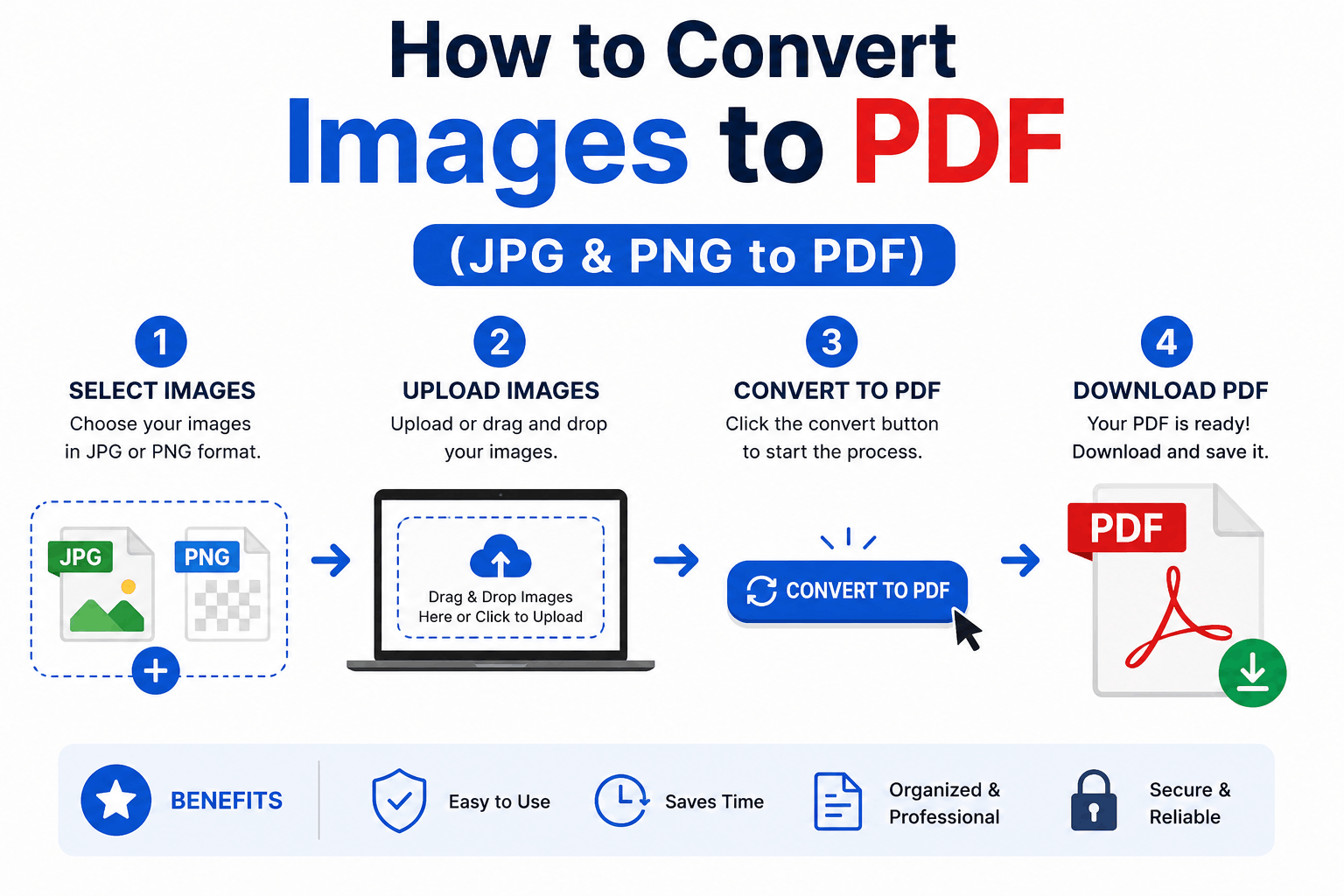
How to Convert Images to PDF (JPG & PNG to PDF)
Turn one or many JPG, PNG or WebP images into a single, tidy PDF — with the right page order, size and margins. Free and entirely in your browser.
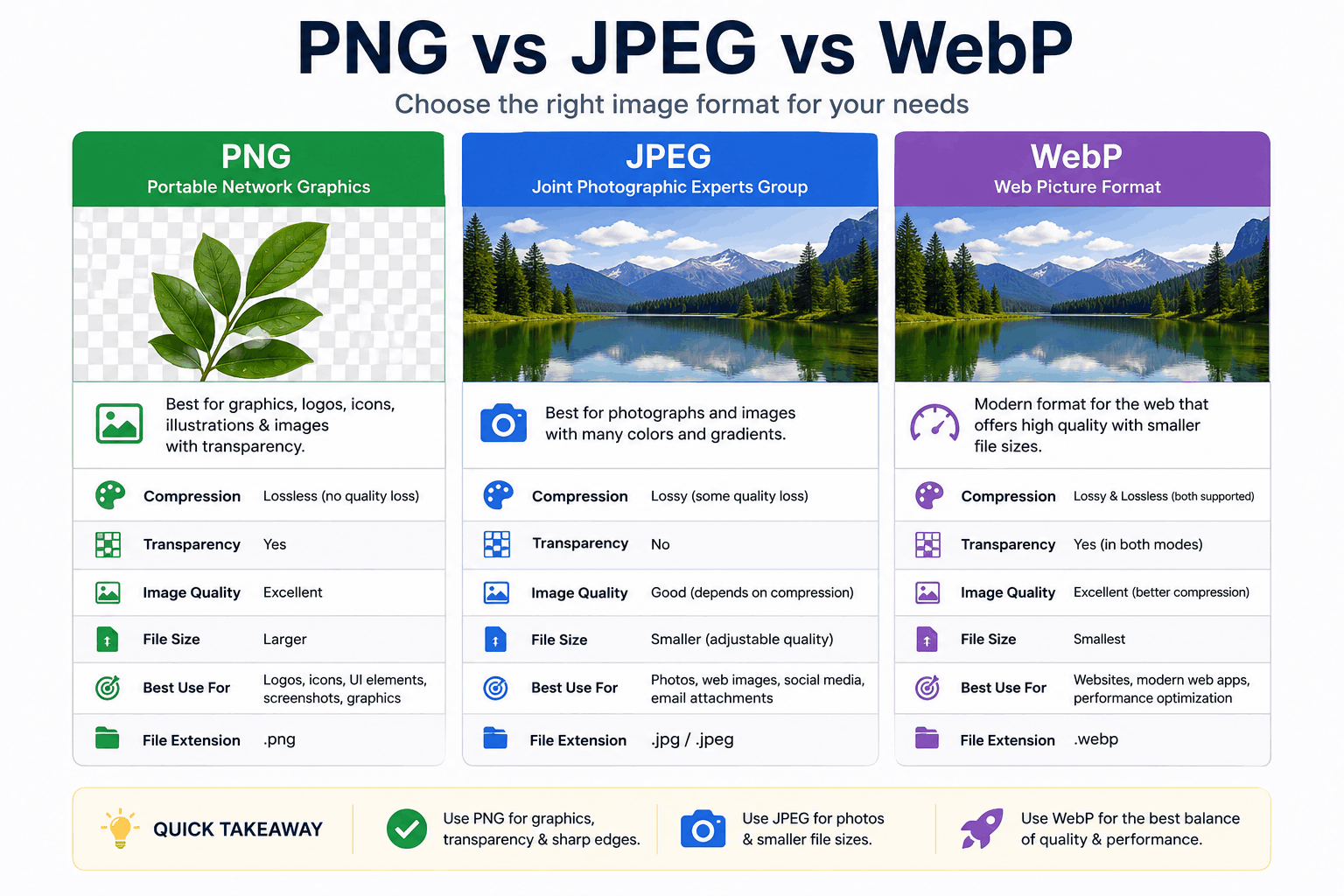
PNG vs JPEG vs WebP: Which Image Format Should You Use?
PNG, JPEG and WebP each win in different situations. Here's a clear, practical breakdown of when to use each — with real guidance on quality, transparency, and file size.
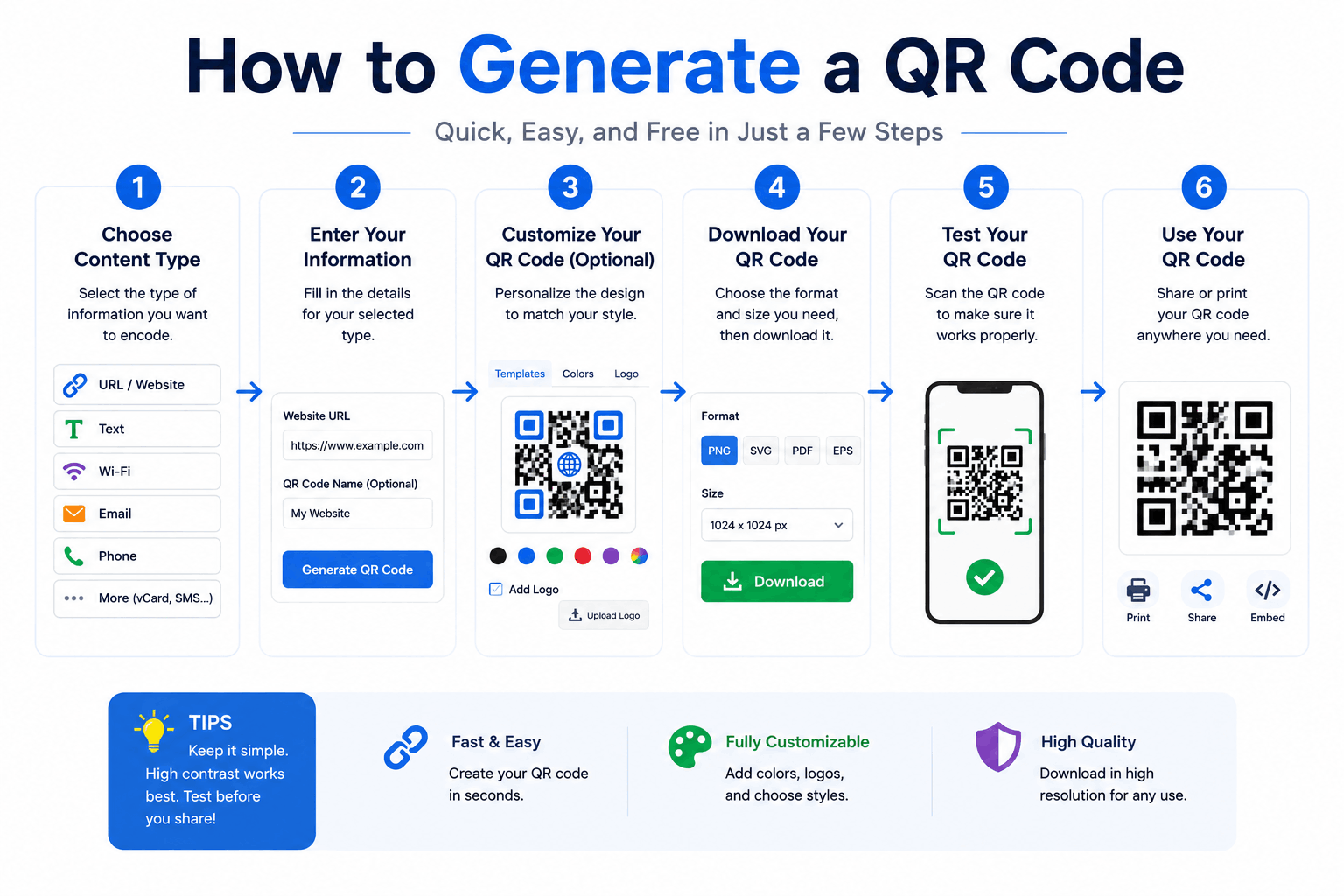
How to Generate a QR Code (Free, No Expiry)
Create QR codes for links, WiFi, text and more — and learn the practical tips (size, contrast, error correction) that make them actually scan reliably.