PNG vs JPEG vs WebP: Which Image Format Should You Use?
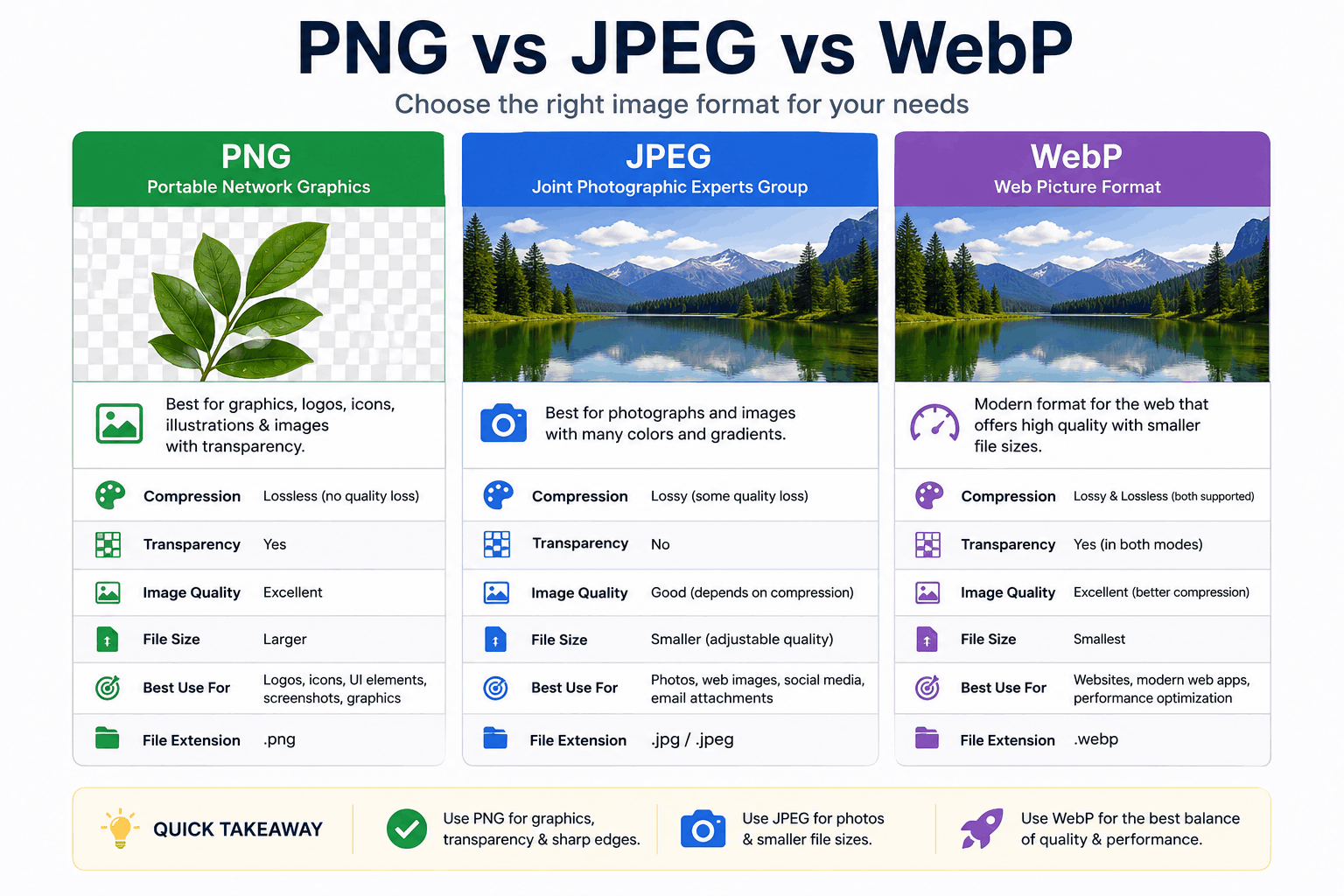
PNG, JPEG and WebP are the three image formats you'll meet constantly on the web — and picking the wrong one means either bloated files or blurry images. This guide cuts through the jargon so you can choose correctly every time.
If you want to convert or compress between these formats, you can do it free and privately (nothing uploaded) with the Image Compressor.
The 10-second answer
- Photographs → JPEG or WebP
- Screenshots, logos, icons, flat graphics, text → PNG or WebP
- Needs transparency → PNG or WebP (never JPEG)
- Smallest files with broad support → WebP
Now the details.
JPEG — the photo workhorse
JPEG (or JPG) has been the default for photographs for decades, and for good reason.
- Compression: Lossy. It discards detail the eye barely notices, achieving large size reductions.
- Best for: Photos and any image with smooth gradients and lots of color.
- Weaknesses: No transparency. It struggles with sharp edges — text and line art come out fuzzy with visible "halo" artifacts. Repeated saving degrades quality each time.
- Use when: You're publishing photographs and want universal compatibility.
PNG — sharp edges and transparency
PNG was designed for graphics, not photos.
- Compression: Lossless by default — perfect fidelity, but larger files for photographic content.
- Best for: Screenshots, logos, icons, diagrams, anything with text or hard edges, and transparency (alpha channel).
- Weaknesses: Photos saved as PNG are huge. A 24-bit PNG photo can be 5–10× larger than the equivalent JPEG.
- Pro tip: PNG supports palette (8-bit) mode with color quantization. Reducing a graphic to an optimized 256-color palette can cut size by 50–70% with little visible change — this is exactly how tools like TinyPNG (and our Image Compressor) shrink PNGs.
WebP — the modern all-rounder
WebP, developed by Google, is the format most people should reach for today.
- Compression: Supports both lossy and lossless modes, plus transparency.
- Size: Typically 25–35% smaller than JPEG at equivalent visual quality, and smaller than PNG for most graphics.
- Support: Every modern browser (Chrome, Firefox, Safari, Edge) has supported WebP for years.
- Weaknesses: Slightly less universal in old software and some email clients; not all image editors export it natively.
- Use when: You control the platform (your own website) and want the best size-to-quality ratio.
Side-by-side comparison
| Feature | JPEG | PNG | WebP |
|---|---|---|---|
| Compression | Lossy | Lossless (+ palette) | Lossy and lossless |
| Transparency | No | Yes | Yes |
| Best for | Photos | Graphics, text, transparency | Almost everything |
| Typical size (photo) | Small | Very large | Smallest |
| Sharp edges/text | Poor | Excellent | Excellent |
| Browser support | Universal | Universal | All modern browsers |
What about AVIF?
AVIF is the newest contender and can beat WebP on compression, especially for photos. Browser support is now broad but still trails WebP slightly, and encoding is slower. It's worth watching — but for a safe, well-supported default in 2025, WebP remains the pragmatic choice.
Practical recommendations
- Building a website? Use WebP for photos and graphics, with a JPEG/PNG fallback only if you must support very old clients.
- Sending a logo or screenshot? PNG keeps text crisp; WebP (lossless) makes it smaller.
- Emailing a photo? JPEG at ~80% quality is small and opens everywhere.
- Need transparency? PNG or WebP — never JPEG.
How to convert between them
You don't need Photoshop. With the Image Compressor you can:
- Open any JPG, PNG or WebP
- Choose your target output format
- Adjust quality and (optionally) resize
- Download the converted file — all in your browser, nothing uploaded
Frequently asked questions
Is WebP better than JPEG?
For size-to-quality, almost always yes — typically 25–35% smaller at the same visual quality, plus it supports transparency. JPEG only wins on absolute universal compatibility.
Should I convert all my PNGs to WebP?
For the web, usually yes — especially photographic PNGs, which are needlessly large. Keep PNG only where you specifically need lossless graphics or maximum compatibility.
Does converting JPEG to PNG improve quality?
No. Once detail is lost to JPEG compression, converting to PNG just stores the already-degraded image in a larger file. Always keep your highest-quality original.
Pick the format to match the image, not out of habit — and when in doubt, WebP is rarely the wrong answer.
Related Articles
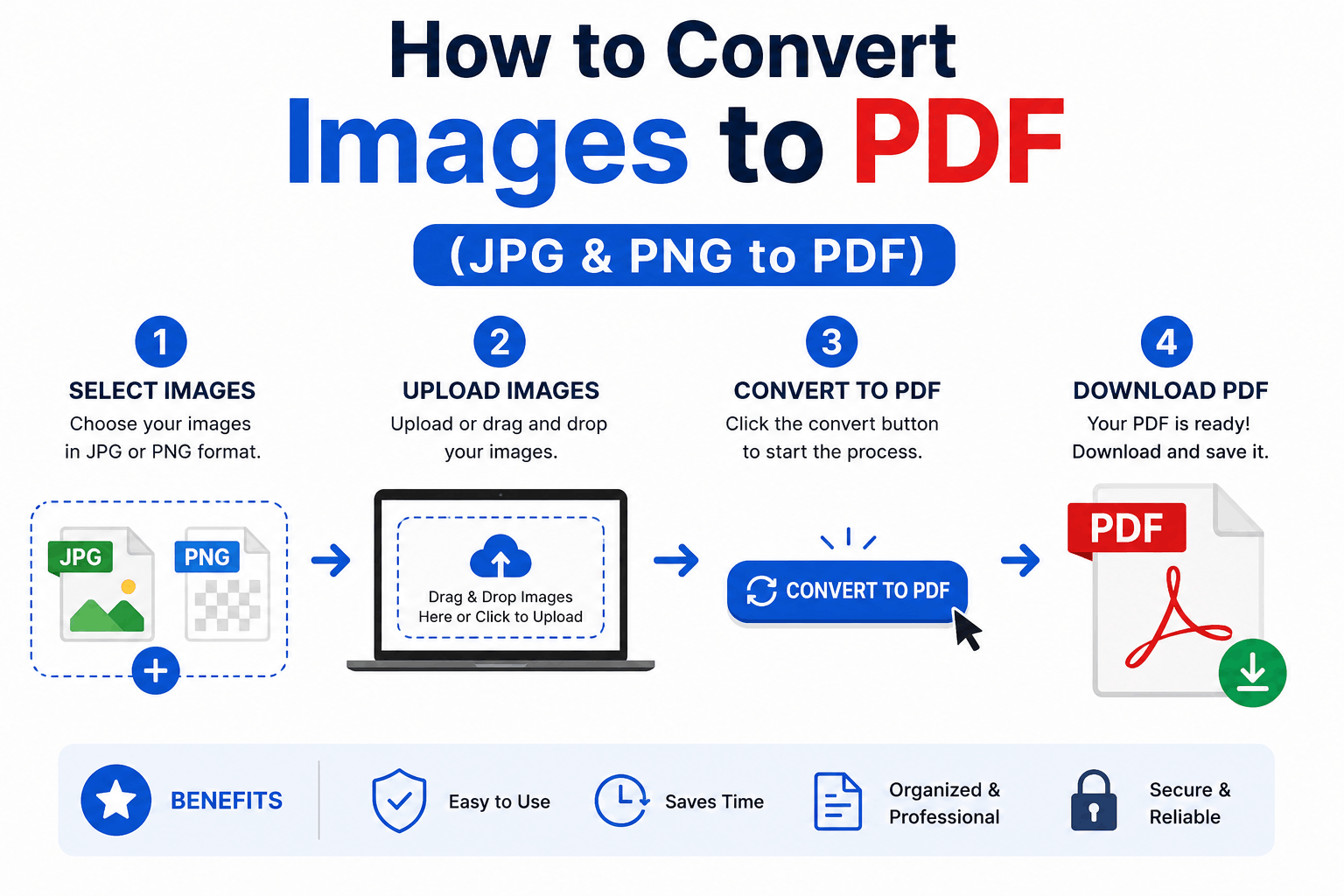
How to Convert Images to PDF (JPG & PNG to PDF)
Turn one or many JPG, PNG or WebP images into a single, tidy PDF — with the right page order, size and margins. Free and entirely in your browser.
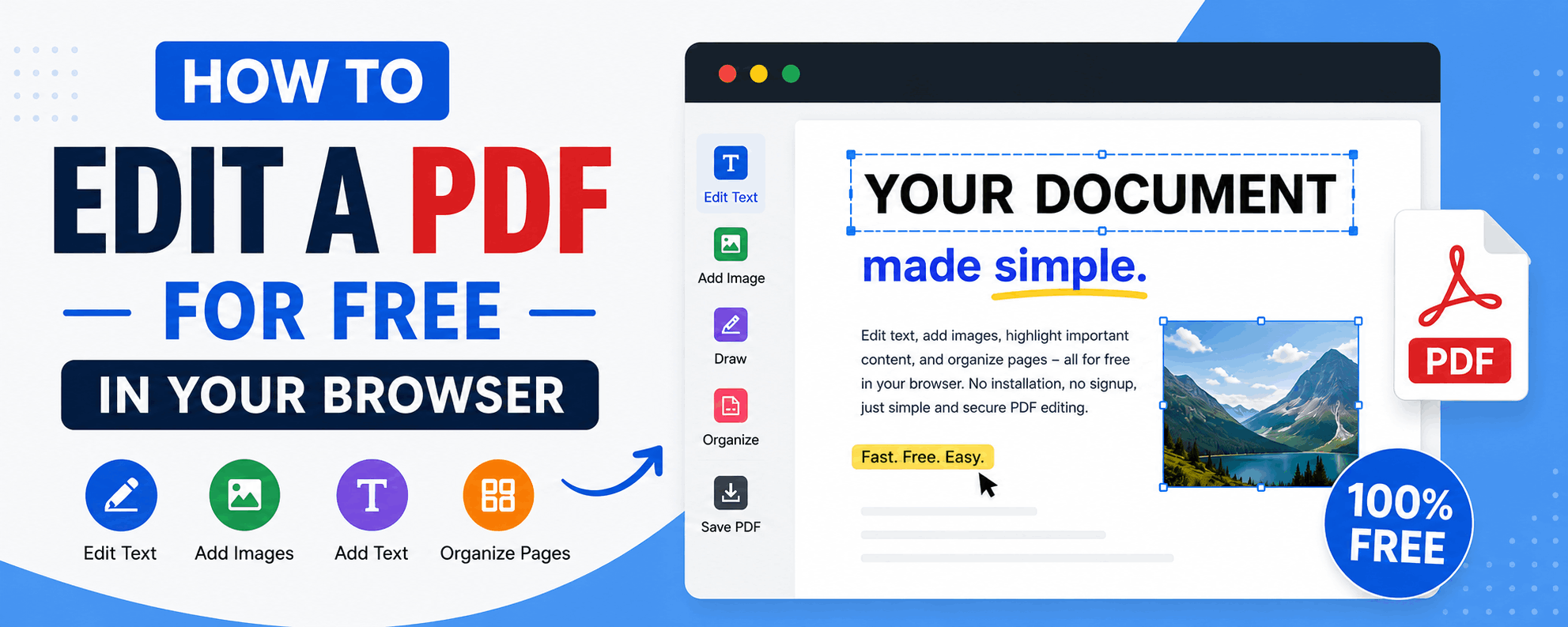
How to Edit a PDF for Free in Your Browser
Reorder, rotate and delete pages, add text and highlights, sign documents and fill forms — all for free in your browser, with no upload and no watermark.
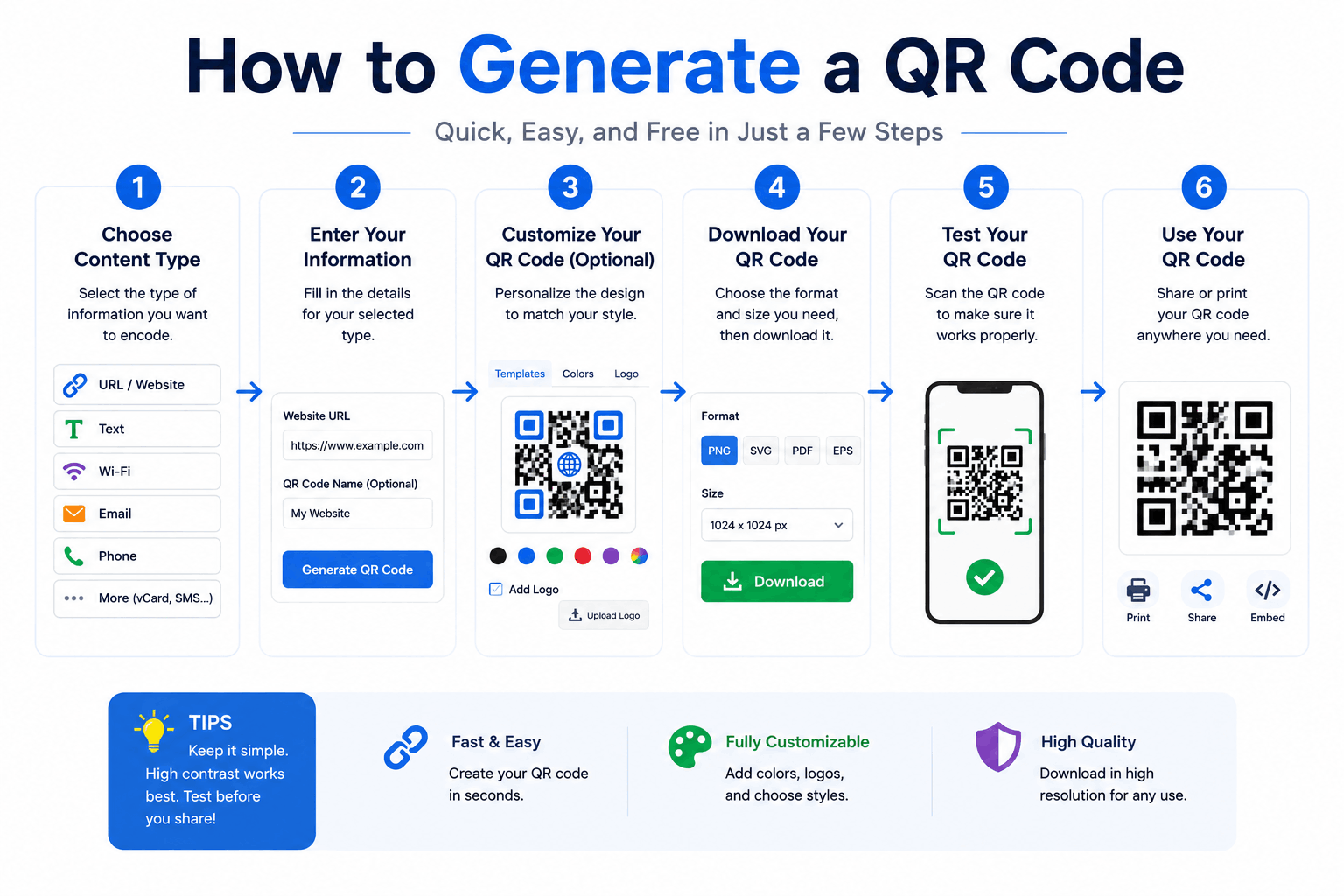
How to Generate a QR Code (Free, No Expiry)
Create QR codes for links, WiFi, text and more — and learn the practical tips (size, contrast, error correction) that make them actually scan reliably.