How to Split a PDF Into Separate Files (Free, No Upload)
Sometimes a single PDF is just too much: a 60-page scan when you only need chapter three, or a merged document you need to break back into individual files. Splitting a PDF solves this — and you don't need expensive software or a sketchy upload site to do it.
This guide shows how to split a PDF using the free Split PDF tool, which runs entirely in your browser so your document never leaves your computer. That matters for contracts, statements, medical records and anything else you'd rather not upload to a stranger's server.
Two ways to split a PDF
There are two common things people mean by "split":
- Extract specific pages or ranges — e.g. "give me pages 1–3 and page 8 as their own files."
- Break into fixed-size chunks — e.g. "split this 100-page document into 10-page files."
The Split PDF tool supports both.
Method 1: Split by custom page ranges
This is the most flexible option. You tell the tool exactly which pages you want.
- Open Split PDF and drop in your file. It shows the total page count.
- Choose Custom ranges.
- Type the pages you want, for example:
1-3, 5, 8-12.-
1-3means pages 1 through 3 -
5means just page 5 - Separate each part with a comma
-
- By default, each range becomes its own file. Tick "Merge all ranges into a single PDF" if you'd rather collect those pages into one document instead.
- Click Split PDF, then download each file — or grab them all as a ZIP.
This is perfect for pulling one section out of a report, or removing a few pages you don't need.
Method 2: Split every N pages
When you just need to chop a long document into equal pieces:
- Open Split PDF and load your file.
- Choose Every N pages.
- Enter the number of pages per file (e.g.
1to turn every page into its own PDF, or10for ten-page chunks). - Click Split PDF and download the parts, individually or as a ZIP.
Setting N to 1 is the quickest way to "burst" a PDF into single pages.
When should you split a PDF?
- Sharing only what's relevant — send the one section a colleague needs, not the whole 80-page deck.
- Staying under attachment limits — break a large file into smaller pieces for email.
- Reorganizing scanned documents — separate a batch scan into individual records.
- Removing sensitive pages — extract only the pages that are safe to share.
Splitting vs. extracting vs. editing
These overlap, so here's the distinction:
- Split = produce multiple output files from one PDF (this tool).
- Extract = pull selected pages into a single new file (use ranges + "merge").
- Edit / reorder / rotate / delete pages = use the full PDF Editor, which also lets you annotate, sign and fill forms.
If you find yourself wanting to rearrange pages or combine files, the PDF Editor is the more powerful companion tool.
Why "in your browser" matters
Most free PDF splitters upload your file to a server, process it there, and send it back. For everyday documents that's fine — but for anything confidential, it means handing your data to a third party (and trusting their retention policy). Browser-based tools like Split PDF do all the work locally using your own device's processing power. Nothing is transmitted, so there's nothing to leak.
Frequently asked questions
Will splitting reduce the quality of my PDF? No. Splitting copies the original pages exactly — text stays selectable, images keep their resolution. It only changes which pages live in which file.
Can I split a password-protected PDF? If the PDF opens without a password (or you've already removed it), yes. Fully encrypted files that require a password to open can't be processed without it.
Is there a file size or page limit? Because it runs in your browser, the practical limit is your device's memory. Typical documents — even hundreds of pages — work fine.
Does it work on phones? Yes. The tool works in any modern mobile browser, though very large files are faster on a desktop.
Splitting a PDF should take seconds, not a software install. Open Split PDF, pick your pages, and you're done — privately and for free.
Related Articles
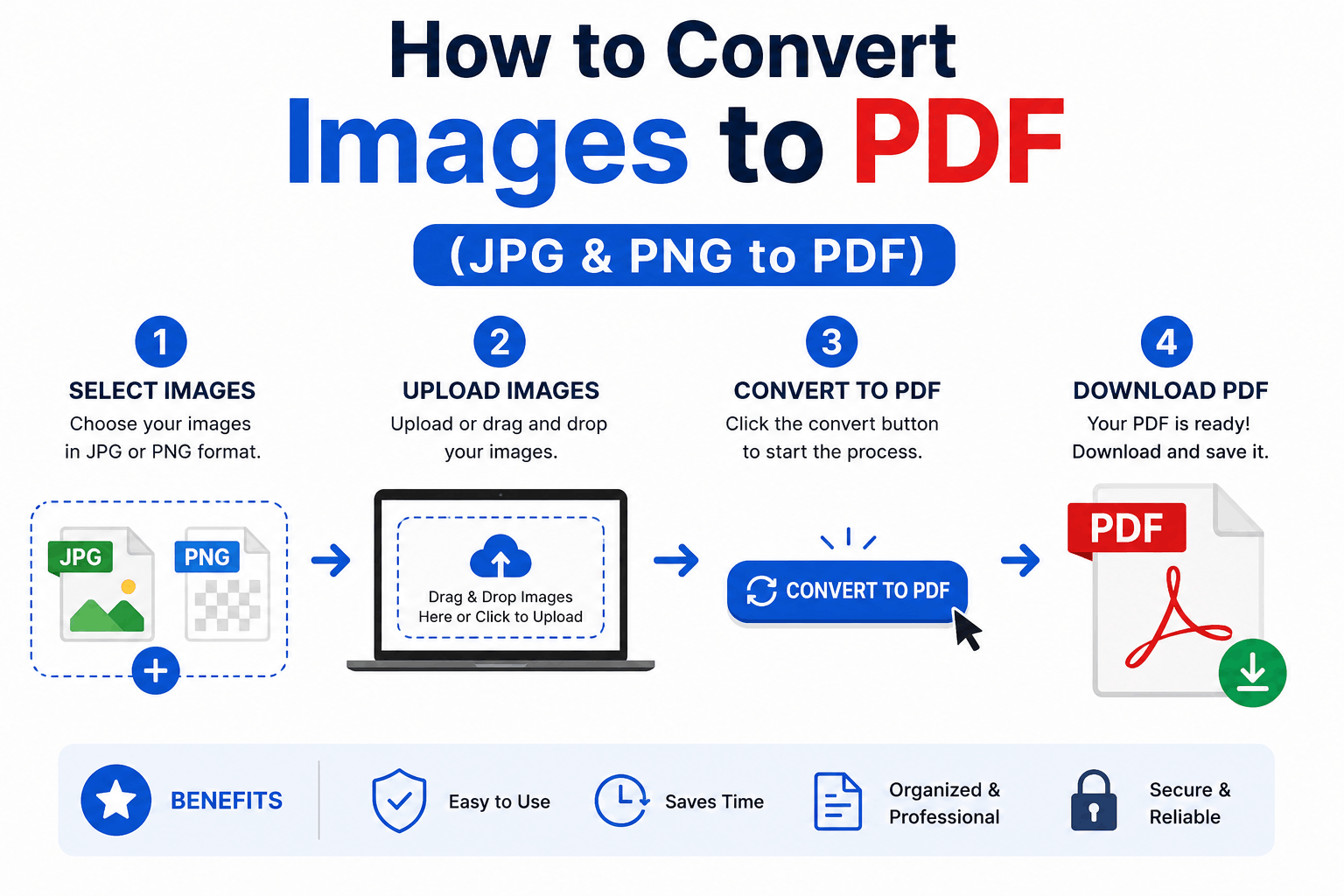
How to Convert Images to PDF (JPG & PNG to PDF)
Turn one or many JPG, PNG or WebP images into a single, tidy PDF — with the right page order, size and margins. Free and entirely in your browser.
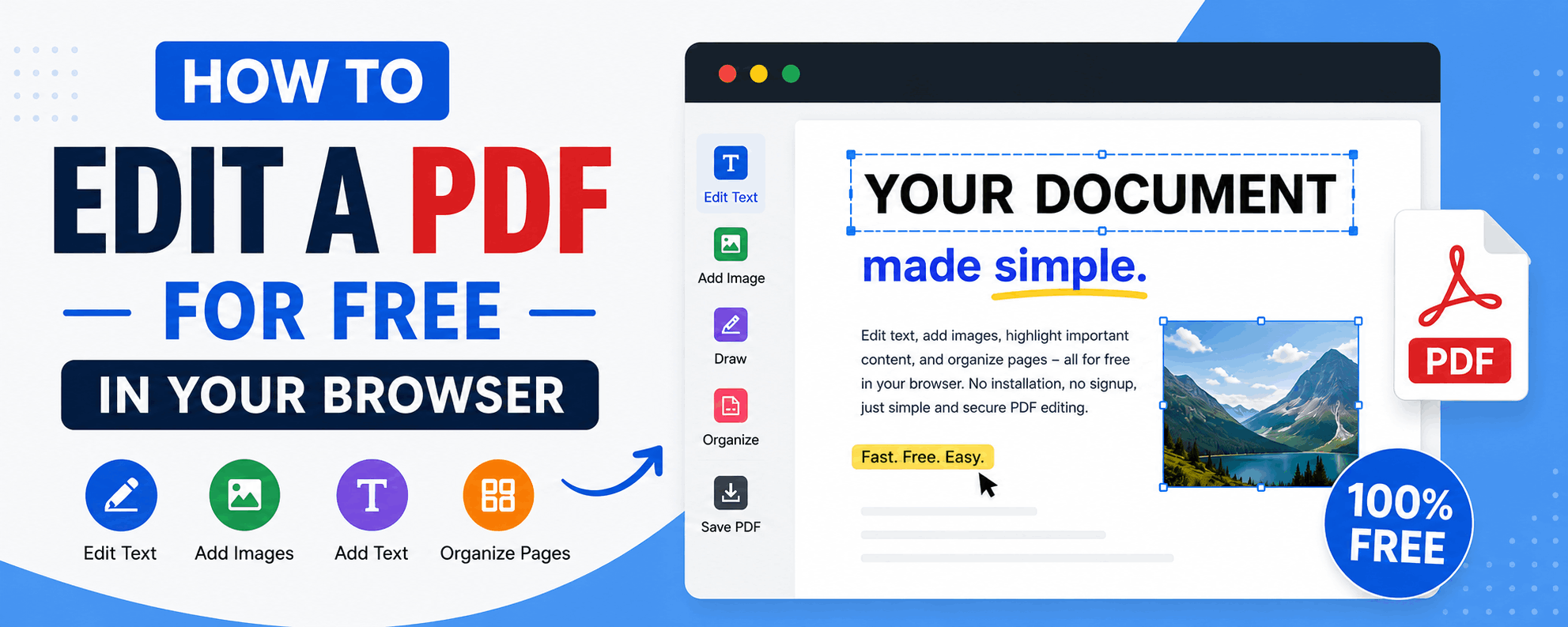
How to Edit a PDF for Free in Your Browser
Reorder, rotate and delete pages, add text and highlights, sign documents and fill forms — all for free in your browser, with no upload and no watermark.
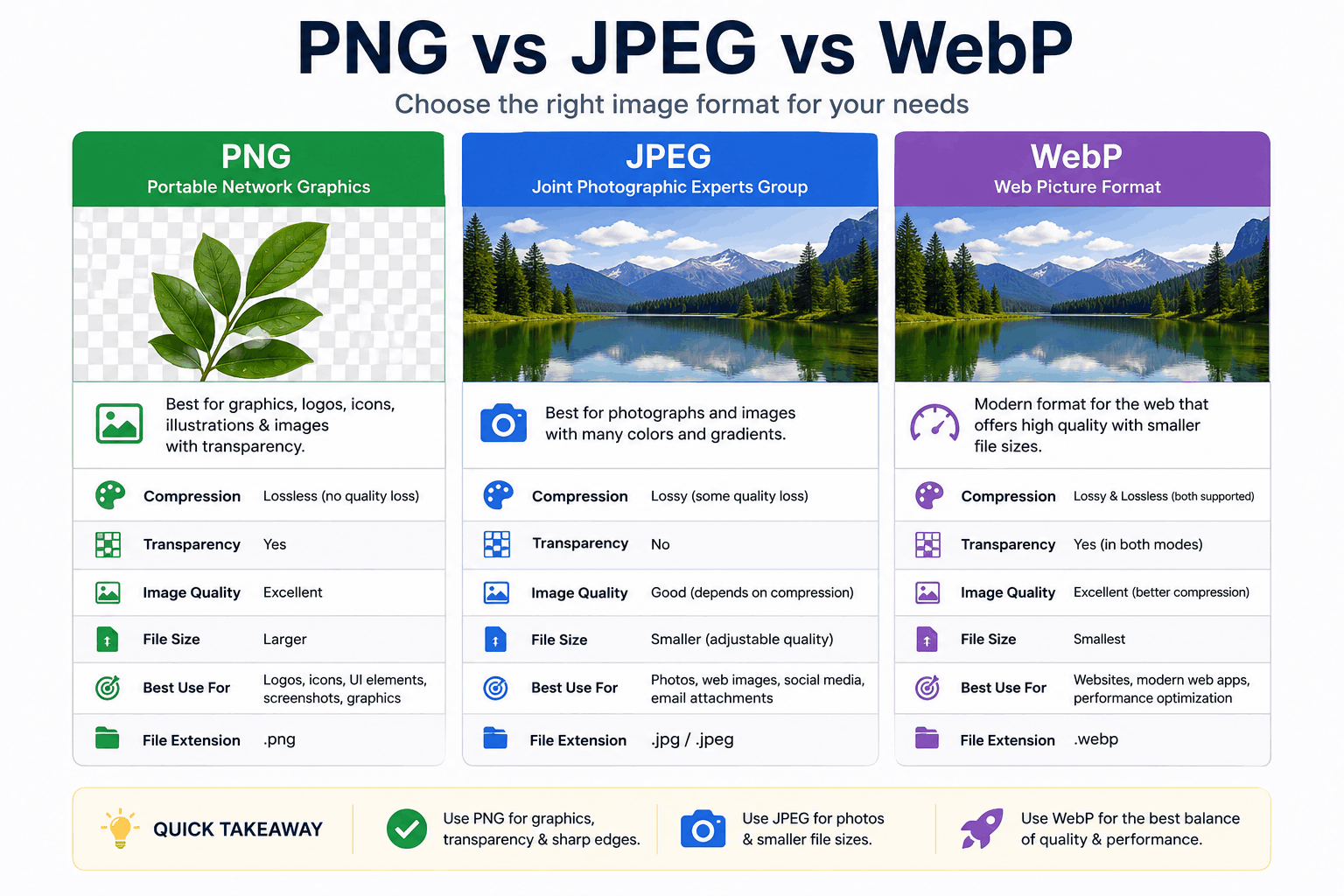
PNG vs JPEG vs WebP: Which Image Format Should You Use?
PNG, JPEG and WebP each win in different situations. Here's a clear, practical breakdown of when to use each — with real guidance on quality, transparency, and file size.