How to Convert a PDF to JPG or PNG
There are plenty of reasons to turn a PDF into images: posting a page to social media, dropping a diagram into a slide deck, previewing a document as a thumbnail, or editing a page in an image editor. This guide shows how to convert a PDF to JPG or PNG properly — including the resolution setting that most people get wrong.
We'll use the free PDF to JPG tool. It renders pages in your browser, so your PDF is never uploaded.
JPG or PNG — which should you choose?
- JPG — smaller files, ideal for pages that are mostly photos or full-color scans. Slight quality loss, invisible at sensible settings.
- PNG — lossless and crisp, best for pages with text, line art, charts or screenshots, and when you need transparency. Larger files.
Rule of thumb: text-heavy or diagram pages → PNG; photo-heavy pages → JPG.
Resolution is everything
This is the setting that determines whether your exported image looks crisp or blurry. PDFs are vector documents with no inherent "pixel size," so you choose how finely to render them, measured in DPI (dots per inch):
- 72 dpi (Screen) — fine for quick on-screen previews and thumbnails. Looks soft if enlarged.
- 144 dpi (High) — the recommended default. Sharp on modern high-resolution displays.
- 216 dpi (Very high) — great when the image will be zoomed or displayed large.
- 288 dpi (Max) — near print quality; larger files and slower to render.
If your exported text looks fuzzy, the fix is almost always increase the resolution, not the quality slider.
Step by step
- Open PDF to JPG and drop in your PDF. It shows the page count.
- Choose your format — JPG or PNG.
- Pick a resolution. Start with High (144 dpi); bump it up if you need print-quality output.
- For JPG, optionally adjust the quality slider (PNG is lossless, so it has no quality setting).
- Leave Pages blank to convert the whole document, or enter a range like
1-3, 5to convert only specific pages. - Click Convert to images, then download each image — or all of them as a ZIP.
Common uses
- Social media — Instagram and many platforms only accept images, not PDFs.
- Presentations — drop a converted page straight into PowerPoint, Google Slides or Keynote.
- Thumbnails and previews — show what a document looks like without forcing a download.
- Editing — open a page in any image editor to annotate or redact.
-
Embedding in web pages — sometimes an
<img>is simpler than a PDF embed.
Tips for the best results
- Match resolution to use. Web preview? 144 dpi is plenty. Printing? Go 288.
- Use PNG for screenshots and diagrams to keep text edges sharp; JPG can blur fine lines.
- Converting many high-resolution pages uses a lot of memory — if a huge document struggles at Max dpi, lower the resolution or convert a page range at a time.
- Need the text to stay selectable? Then you don't want images — keep it as a PDF, or split the PDF into the pages you need instead.
Keep your document private
Converting via a typical online service means uploading your PDF to their servers. For invoices, contracts or anything personal, that's a needless risk. PDF to JPG renders everything locally in your browser — your file never leaves your device.
Frequently asked questions
How do I convert only one page of a PDF to an image?
In the Pages field, enter just that page number (e.g. 4). Leave it blank to convert every page.
Why does my exported image look blurry? You rendered at too low a resolution. Re-export at 144 dpi or higher — for text and diagrams, higher is better.
Can I convert a PDF to JPG on my phone? Yes, in any modern mobile browser. Lower the resolution for very large documents to keep things responsive.
What's the difference between this and "PDF to Word"? This produces images of each page (great for visuals, not editable text). PDF-to-Word attempts to recover editable text and layout — a different goal.
Pick the right format, render at a sensible resolution, and you'll get crisp images every time. Try it with PDF to JPG — free, private, and no upload required.
Related Articles
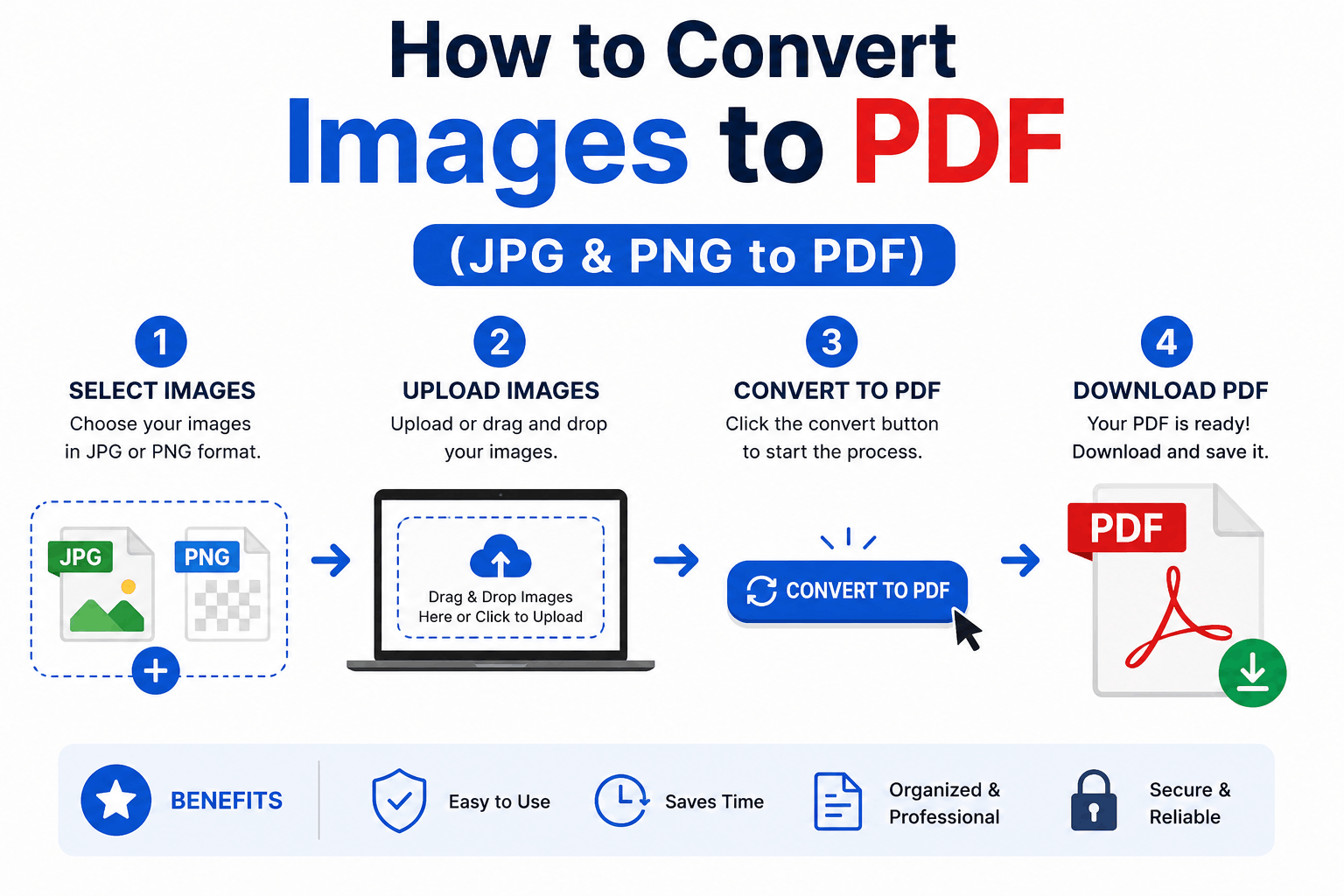
How to Convert Images to PDF (JPG & PNG to PDF)
Turn one or many JPG, PNG or WebP images into a single, tidy PDF — with the right page order, size and margins. Free and entirely in your browser.
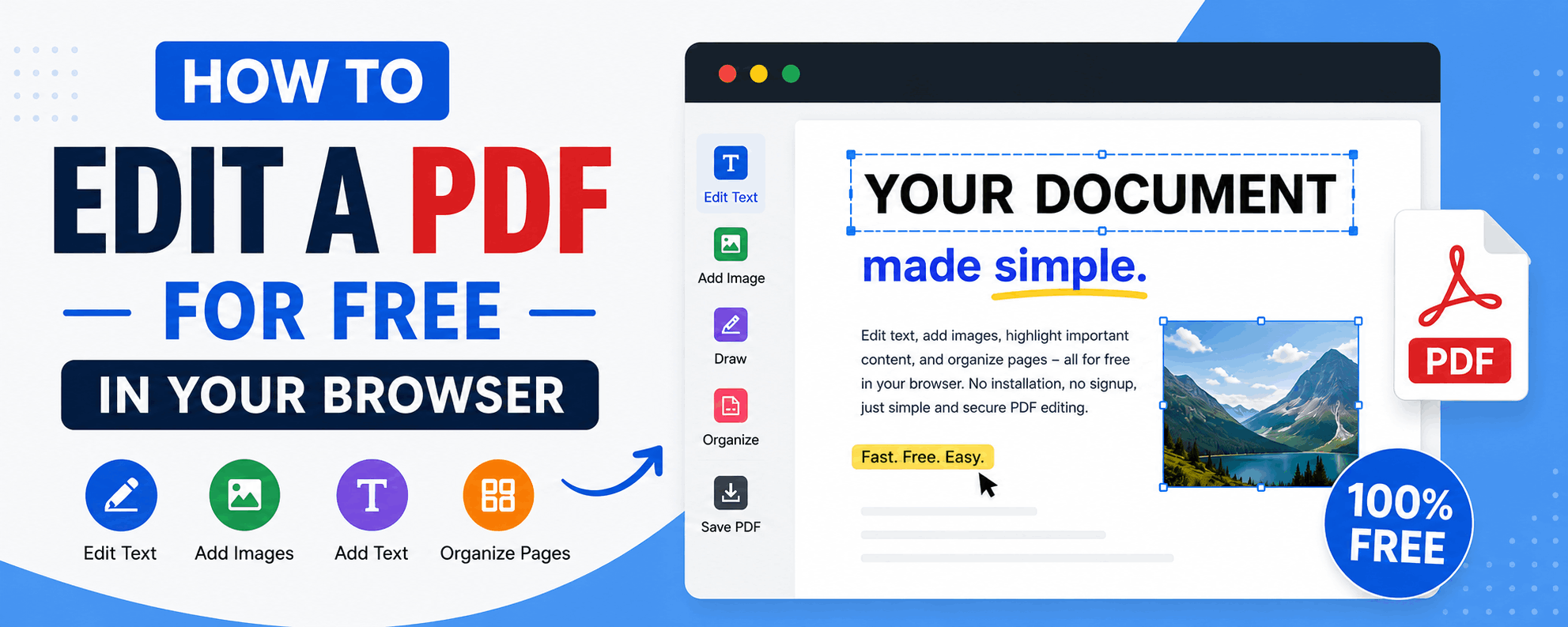
How to Edit a PDF for Free in Your Browser
Reorder, rotate and delete pages, add text and highlights, sign documents and fill forms — all for free in your browser, with no upload and no watermark.
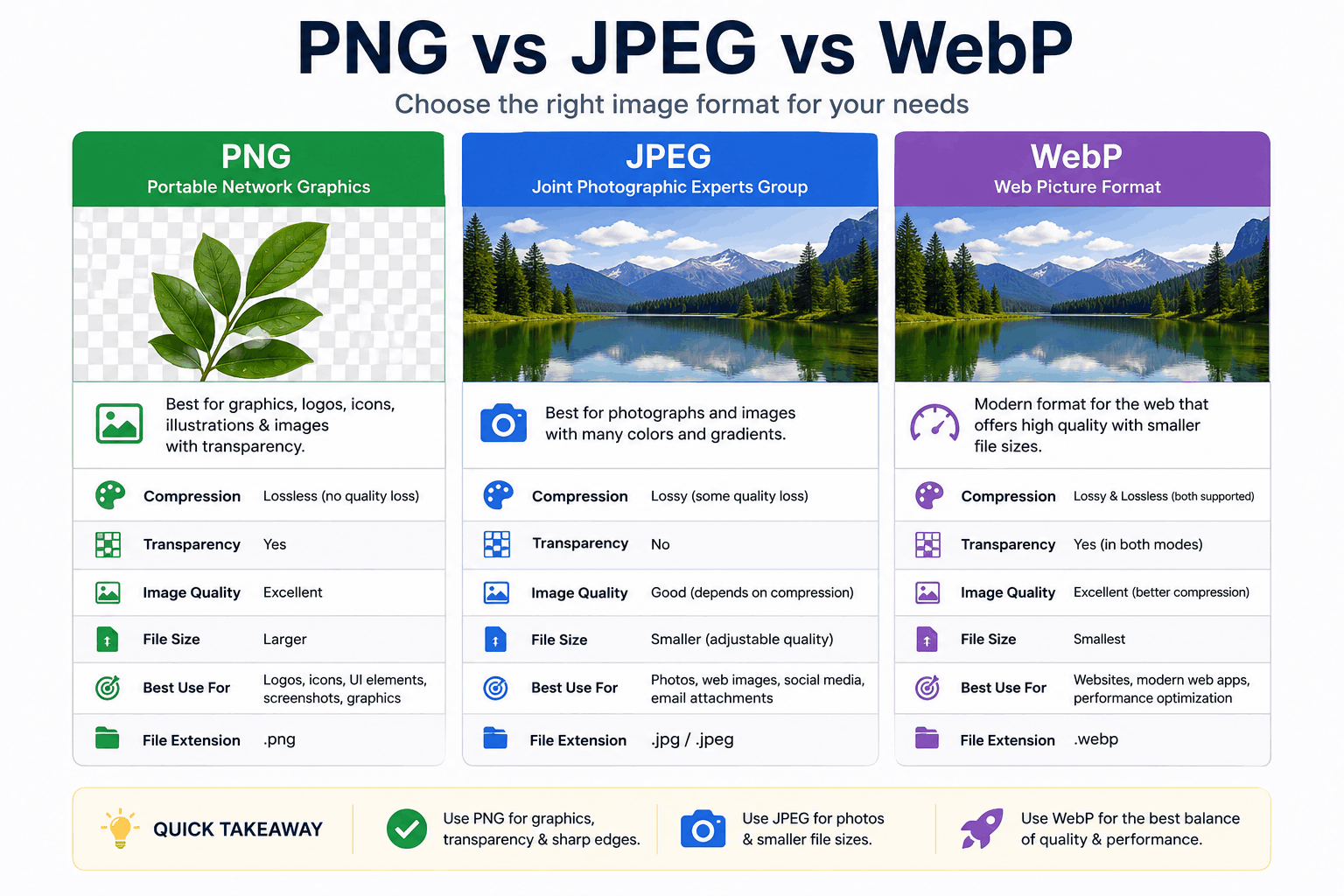
PNG vs JPEG vs WebP: Which Image Format Should You Use?
PNG, JPEG and WebP each win in different situations. Here's a clear, practical breakdown of when to use each — with real guidance on quality, transparency, and file size.