How to Compress a PDF (Without Wrecking It)
You've all been there: a PDF is 40 MB, the upload form caps at 10 MB, and you just need it smaller now. The frustrating part is that "compress PDF" tools give wildly different results on different files — one PDF drops by 80%, the next barely moves. Understanding why is the key to compressing PDFs without ending up with an unreadable mess.
Everything below can be done with the free, browser-based PDF Compressor — your file never leaves your device, so it's safe for contracts, statements, medical records and anything else you'd rather not upload to a stranger's server.
A PDF is a container, not an image
Unlike a JPG, a PDF can hold very different kinds of content, and that's what decides how much it can shrink:
- Text and vector graphics — the actual characters, lines and shapes. These are described mathematically and are already extremely compact. There is very little fat to trim.
- Embedded images — scanned pages, photos, screenshots. These are usually the entire reason a PDF is large, and they're where nearly all the savings live.
So the single best predictor of how much a PDF will compress is: how much of it is images? A 30-page contract that's pure text might only be a few hundred kilobytes to begin with. A 30-page scanned contract — where every page is really a photograph of paper — can easily be 40 MB.
The two honest ways to compress a PDF
There's no magic. Client-side, in your browser, there are two legitimate approaches, and they make opposite trade-offs.
1. Light: repack the file (keeps text selectable)
The gentle approach rewrites the PDF's internal structure more efficiently — using object streams, removing duplicated and orphaned data, and tightening how objects are stored. Nothing about how the document looks changes, and crucially, your text stays selectable and searchable.
The catch: if a PDF is already mostly text, there's little to reclaim, so savings are often only a few percent. It's the right choice for text documents where you can't afford to lose selectable text — you just want to squeeze out the slack.
2. Strong: rasterize the pages (big savings for scans)
The aggressive approach renders every page to an image, re-encodes that image at a lower resolution and quality, and rebuilds the PDF from those pictures. For scanned documents and photo-heavy PDFs this is transformative — 70% or more is common.
The trade-off is real and you should know it going in: once a page is a picture, the text on it is no longer selectable or searchable. It looks the same to a human reader, but you can't copy-paste from it, and neither can a screen reader. For a scanned document that was already just images of paper, you lose nothing. For a born-digital text PDF, you'd be throwing away the one thing that was compressing well — which is why Strong mode can even make a text PDF bigger.
A good compressor protects you from that last case: if the "compressed" result comes out larger than your original, it should hand you back the original untouched. You should never receive a bigger file than you started with.
Choosing the right settings
In Strong mode, two dials control the size/quality trade-off:
- Resolution (DPI). This is the biggest lever. 72 dpi is fine for on-screen reading and email; 110–150 dpi is a good balance that still prints acceptably; 200 dpi approaches print quality. Halving the DPI roughly quarters the image data.
- Quality. How aggressively each page image is compressed. 60–75% is the sweet spot — noticeably smaller with little visible difference. Below ~50% you'll start to see fuzziness on text edges.
Start at 110 dpi / 70% quality and only bump them up if the result looks too soft for your purpose.
A quick decision guide
- Scanned document or lots of photos? → Strong mode. Start balanced, push resolution down if you need it smaller.
- Text document you need to search or copy from? → Light mode. Accept the modest savings.
- Text document and you only care about size (e.g. archiving a printout)? → Strong mode is fine; you don't need the text layer.
- Result barely changed? → Your PDF was already efficient. That's a good sign, not a failure — there was nothing to remove.
Do it privately, in your browser
Most of the reasons you compress a PDF — a signed contract, a bank statement, a passport scan, a medical form — are exactly the documents you shouldn't be uploading to an anonymous website. The PDF Compressor runs entirely in your browser: the file is read from your device, compressed locally, and handed straight back. Nothing is transmitted, so it keeps working even if you disconnect from the internet after the page loads.
Smaller file, readable result, and it never left your laptop. That's how compressing a PDF should work.
Related Articles
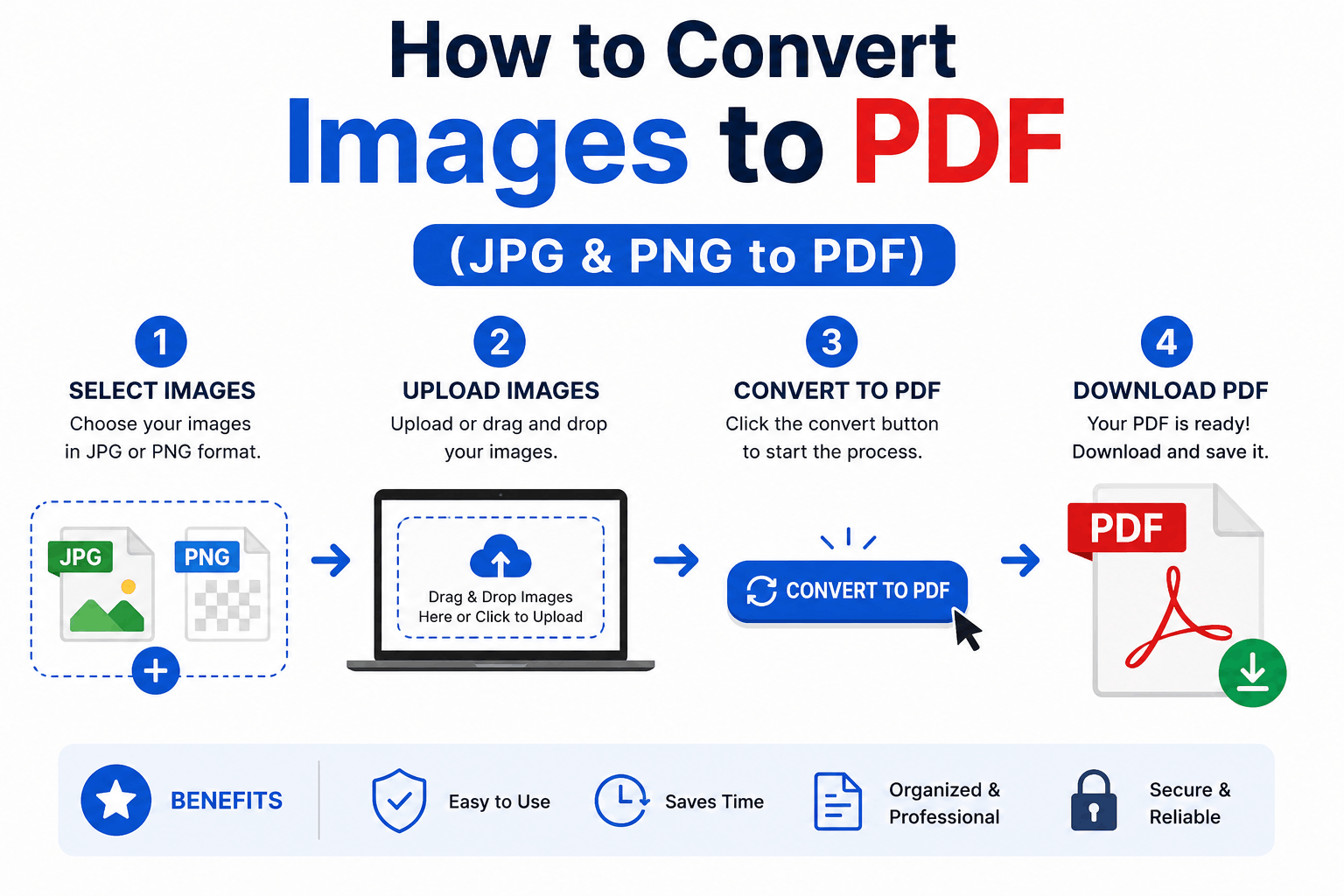
How to Convert Images to PDF (JPG & PNG to PDF)
Turn one or many JPG, PNG or WebP images into a single, tidy PDF — with the right page order, size and margins. Free and entirely in your browser.
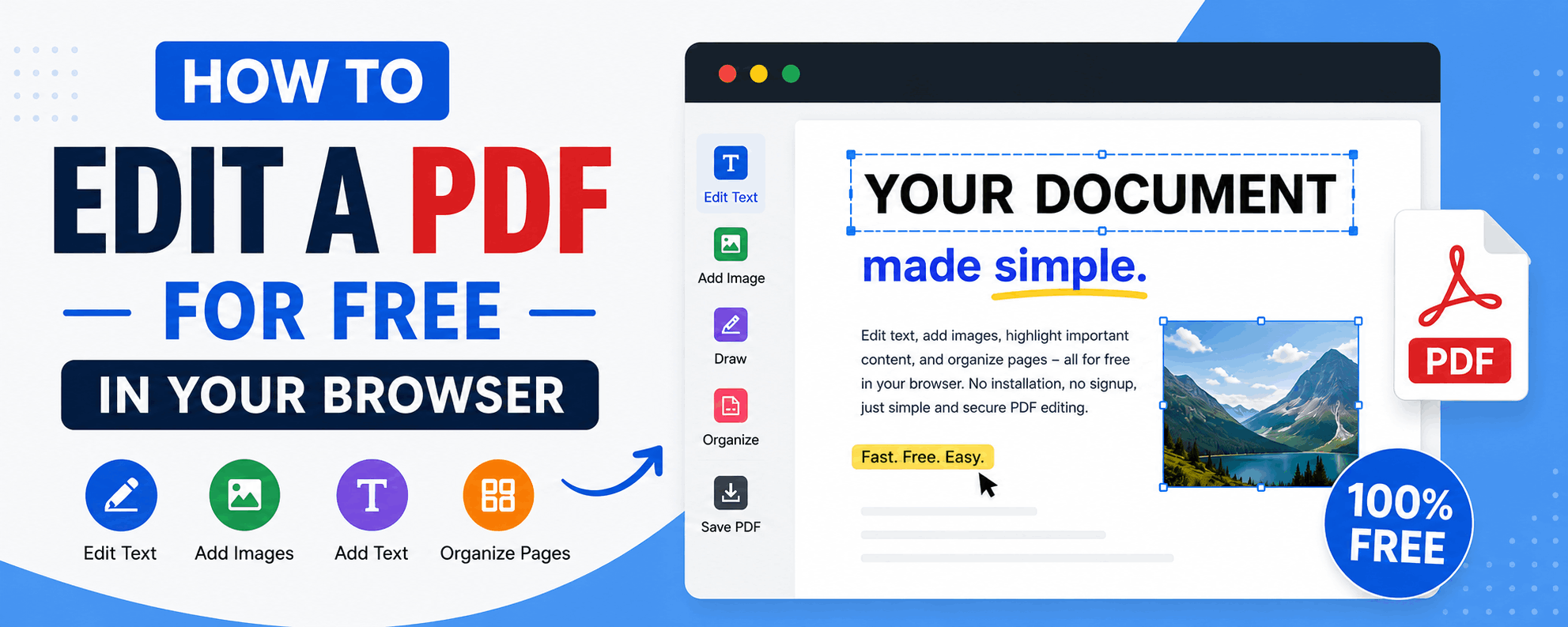
How to Edit a PDF for Free in Your Browser
Reorder, rotate and delete pages, add text and highlights, sign documents and fill forms — all for free in your browser, with no upload and no watermark.
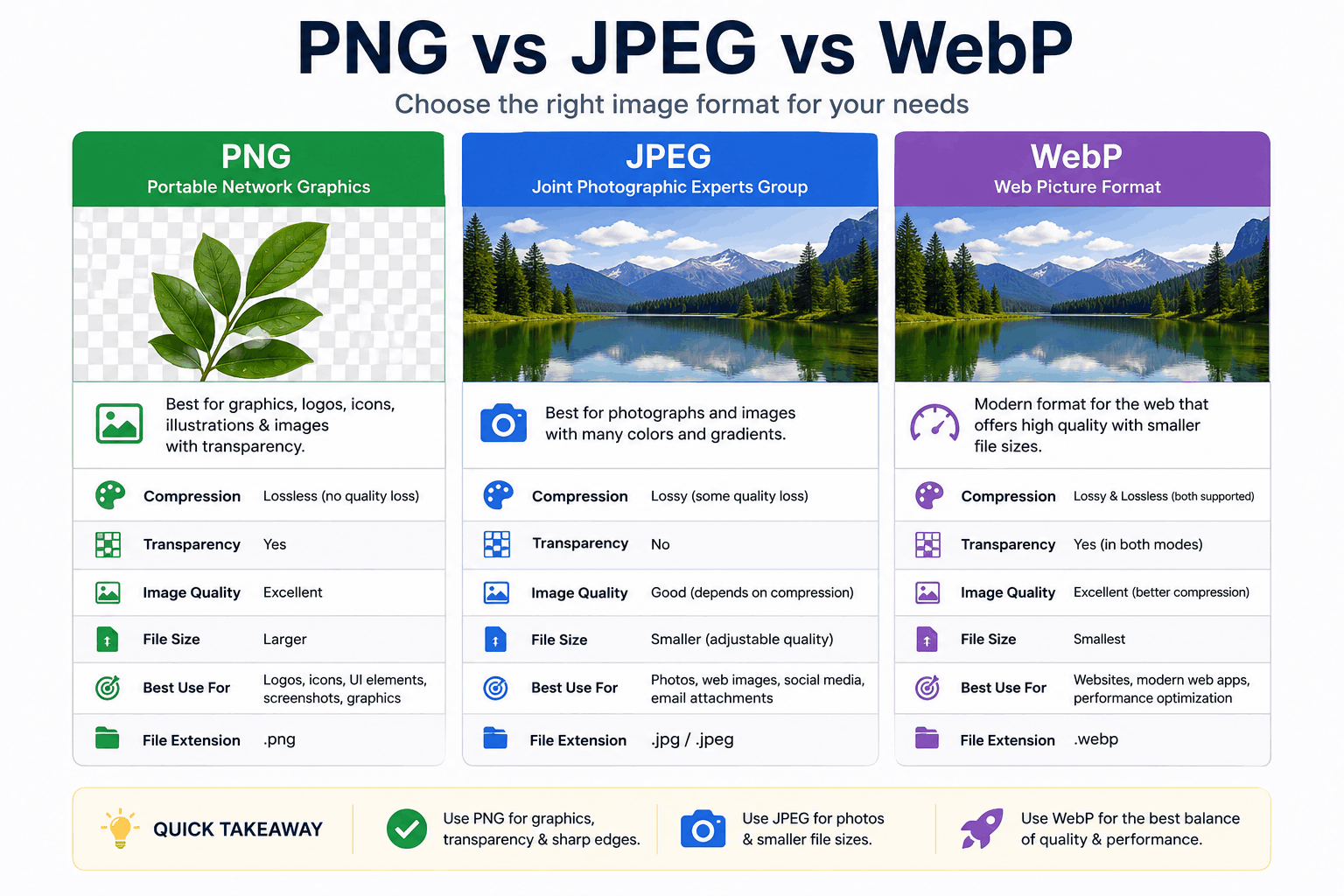
PNG vs JPEG vs WebP: Which Image Format Should You Use?
PNG, JPEG and WebP each win in different situations. Here's a clear, practical breakdown of when to use each — with real guidance on quality, transparency, and file size.