What Your Photos Reveal About You (and How to Remove It)
Take a photo with your phone right now. That file doesn't just contain the image — it contains the exact GPS coordinates of where you're standing, the date and time down to the second, your phone's make and model, and often the app you edited it with. Send someone the original file, and you've sent them all of that too.
This hidden layer is called EXIF metadata, and this guide covers what's in it, when it actually leaks, and how to remove it — using the free EXIF Remover, which shows you the data and strips it without your photo ever leaving your device.
What's actually embedded in a photo
Open any phone photo in the EXIF Remover and you'll typically see:
- GPS coordinates — precise enough to identify a house, not just a city. A photo of your new sofa taken at home is also a map pin to your home.
- Timestamp — when the photo was taken, to the second.
- Device details — make and model ("Apple iPhone 15 Pro", "Samsung SM-S928B").
- Software — the editor or OS version that last touched the file.
None of this is visible in the image. All of it is readable by anyone with the file and a free viewer — which includes every EXIF viewer website, most photo apps, and even Windows Explorer's Properties dialog.
"But doesn't Instagram remove it?"
Mostly, yes — and that gives people a false sense of safety. The big platforms strip EXIF from publicly displayed images. The metadata survives in the situations people think of as private, which are exactly the risky ones:
- Email attachments and cloud drive links — original file, full metadata.
- Messaging apps when sent "as a file/document" — WhatsApp and Telegram compress and strip photos sent normally, but the "send as document/original quality" option preserves everything.
- Marketplace listings — selling a bike on a classifieds site with photos taken in your garage can leak your home address; some sites strip EXIF, many don't.
- Blog and forum uploads — many CMSs store the file exactly as uploaded.
The safe habit: clean first, share second — then it doesn't matter what the receiving platform does.
The quality trap with most EXIF removers
Most online metadata removers work by re-encoding the image — decoding it and saving a new copy. That strips metadata, but it also recompresses your JPEG (quality loss on every pass) and often discards the color profile (colors shift subtly).
There's a better way: EXIF lives in separate segments of the file structure, alongside — not inside — the compressed image data. A careful tool can delete those segments and copy the image data through untouched. The EXIF Remover does exactly this for JPG and PNG: the cleaned file's pixels are byte-for-byte identical to the original.
One honest exception: photos stored with a rotation flag. Some cameras save the image sideways and rely on an EXIF tag to tell viewers to rotate it. Delete that tag naively and the photo displays sideways — a bug many strippers ship with. The tool detects this case and re-encodes once at high quality with the rotation applied physically, so the cleaned photo looks right everywhere.
How to remove EXIF data (10 seconds)
- Open the EXIF Remover and drop in your photos.
- Review what was found — GPS shows in red, with the exact coordinates that were about to travel with your file.
- Download each cleaned photo, or the whole batch as a ZIP.
Because everything runs in your browser, there's no upload, no file size limit, and no server that could log your photos. A metadata remover that uploaded your photos to clean them would defeat its own purpose — you can verify this one doesn't by watching the DevTools Network tab, or by loading the page and then disconnecting from the internet: it keeps working.
When you actually want to keep EXIF
Metadata isn't evil — it's context. Keep it when you're archiving your own photo library (date and location power your gallery's search and maps), submitting photography to contests that verify authenticity, or documenting evidence where timestamps matter. Strip it when the file leaves your control.
Cleaning photos for the web anyway? Re-encoding tools like the Image Compressor and WebP Converter also drop metadata as a side effect — so a compressed-for-web image is usually already clean. For everything else, use the purpose-built remover and keep your pixels intact.
Related Articles
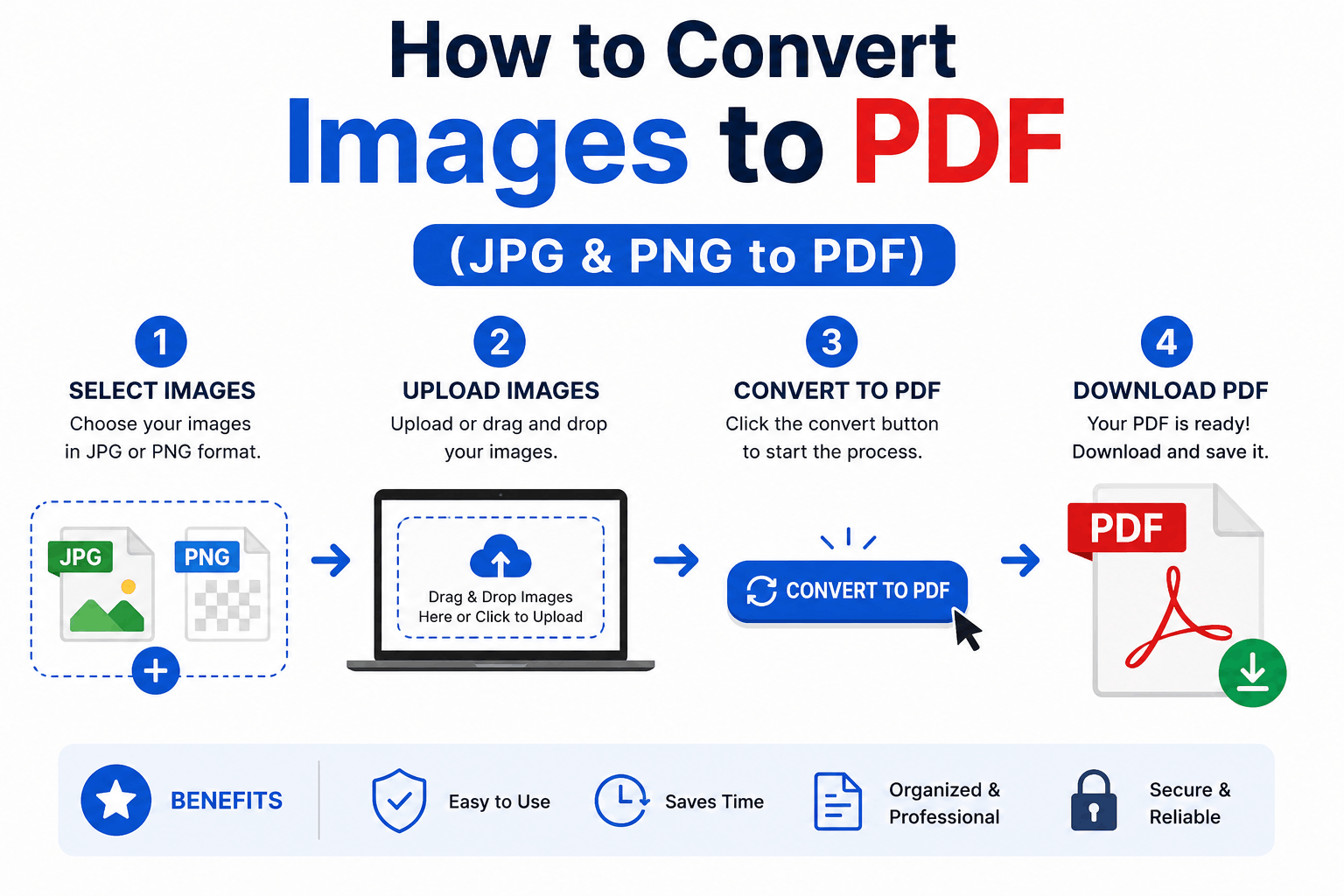
How to Convert Images to PDF (JPG & PNG to PDF)
Turn one or many JPG, PNG or WebP images into a single, tidy PDF — with the right page order, size and margins. Free and entirely in your browser.
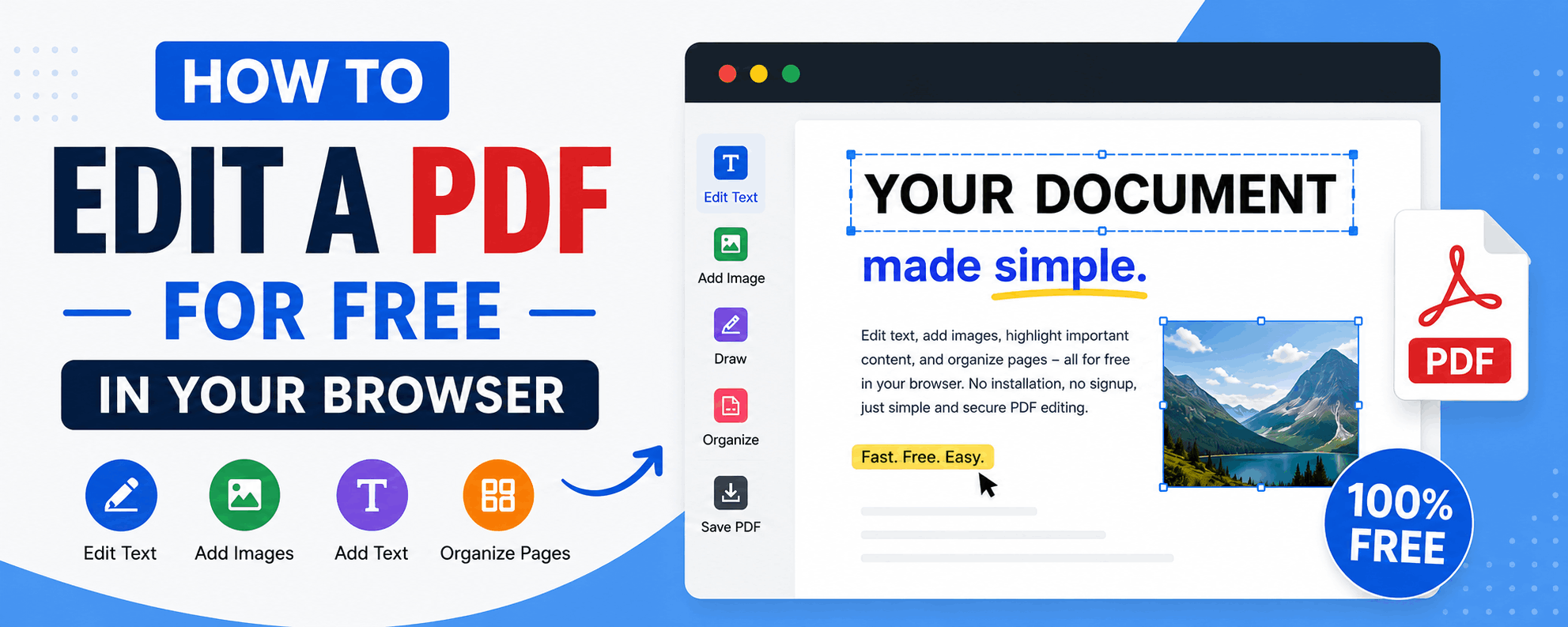
How to Edit a PDF for Free in Your Browser
Reorder, rotate and delete pages, add text and highlights, sign documents and fill forms — all for free in your browser, with no upload and no watermark.
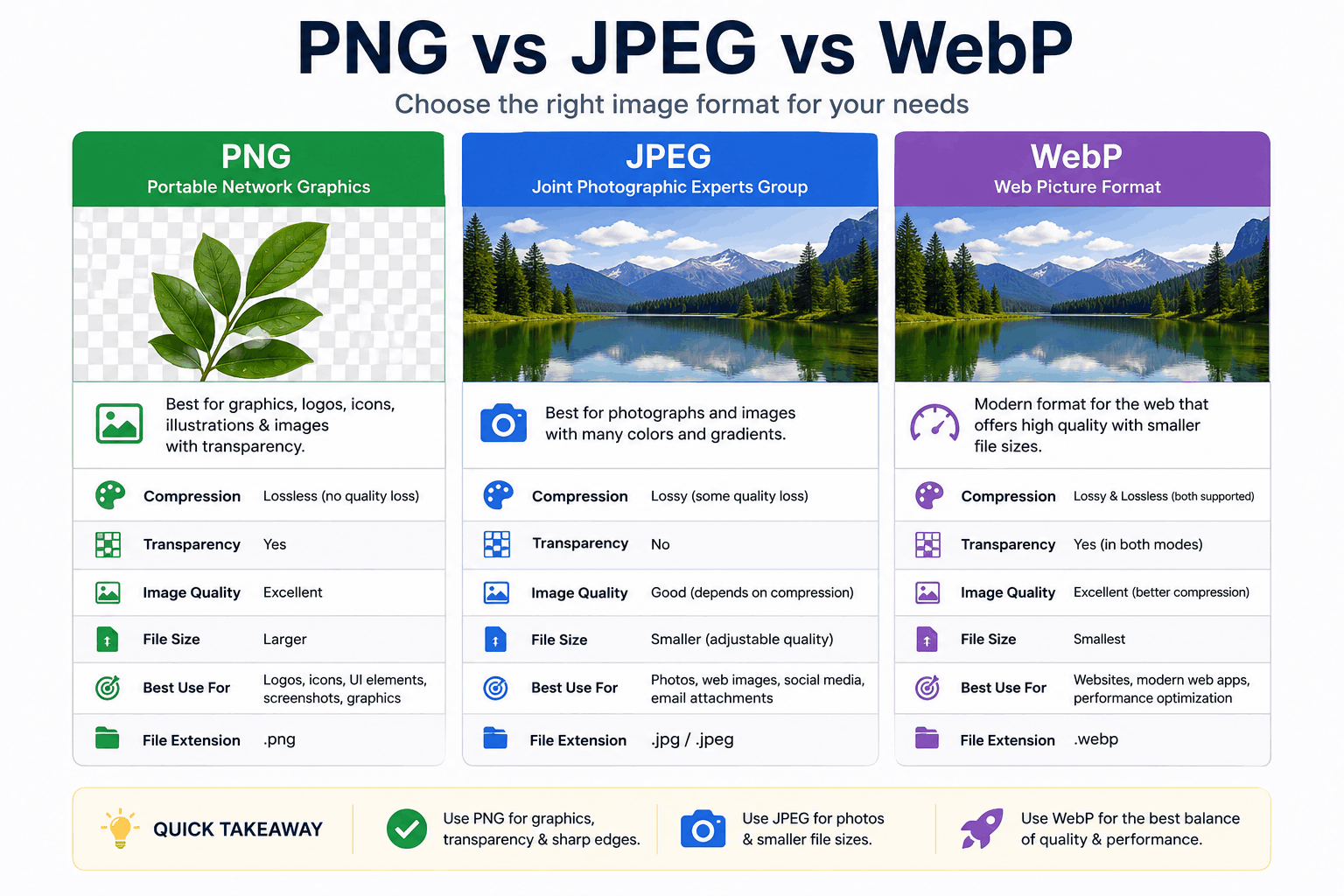
PNG vs JPEG vs WebP: Which Image Format Should You Use?
PNG, JPEG and WebP each win in different situations. Here's a clear, practical breakdown of when to use each — with real guidance on quality, transparency, and file size.