How to Test a Regular Expression (Beginner's Guide)
Regular expressions (regex) are a compact language for matching patterns in text — validating emails, finding-and-replacing, parsing logs, extracting data. They look intimidating, but the core is small. This guide teaches the essentials and shows how to test patterns safely before you put them in code.
Follow along in the Regex Tester — type a pattern and some text and watch matches highlight live, in your browser.
Why test regex separately?
A regex that's slightly wrong fails silently — it matches too much, too little, or the wrong thing. Testing against real sample text before it goes into your code saves hours of debugging. A live tester shows you exactly what matches (and what doesn't) as you type.
The building blocks
Literal characters match themselves. cat matches "cat" anywhere in the text.
Character classes [ ] match any one character inside:
-
[aeiou]— any vowel -
[0-9]— any digit (same as\d) -
[a-zA-Z]— any letter -
[^0-9]— any character that is not a digit (the^inside brackets negates)
Shorthand classes:
-
\ddigit,\wword character (letters, digits, underscore),\swhitespace -
\D,\W,\Sare their negations -
.matches (almost) any character
Anchors match positions, not characters:
-
^start of the string/line -
$end of the string/line -
\ba word boundary
Quantifiers say how many:
-
*zero or more,+one or more,?zero or one -
{3}exactly 3,{2,4}between 2 and 4,{2,}2 or more
Groups and alternation:
-
( )group part of a pattern (and capture it) -
|means "or":cat|dogmatches either
Flags change behavior:
-
gglobal (find all matches, not just the first) -
icase-insensitive -
mmultiline (^/$match each line)
Worked examples
-
A 5-digit zip code:
^\d{5}$— start, exactly five digits, end. -
A simple email-ish check:
^[^@\s]+@[^@\s]+\.[^@\s]+$— something, an@, something, a dot, something (no spaces or extra@). -
A hex color:
^#?[0-9a-fA-F]{6}$— optional#, then six hex characters. -
Find all words:
\w+with thegflag. -
Trim trailing whitespace: match
\s+$(withm) and replace with nothing.
Paste any of these into the Regex Tester and try them against your own text.
Greedy vs lazy (the classic gotcha)
Quantifiers are greedy by default — they match as much as possible. On the text <a><b>, the pattern <.*> matches the whole <a><b>, not just <a>. Add ? to make a quantifier lazy: <.*?> stops at the first >, matching <a>. This single character fixes a huge share of "my regex matches too much" bugs.
Practical tips
- Build incrementally. Start with the simplest pattern that matches one example, then expand. Test after each change.
-
Anchor when you mean "the whole thing." Validating a field? Use
^...$so partial matches don't sneak through (\d{5}matches "abc12345";^\d{5}$doesn't). -
Escape special characters. To match a literal dot, use
\.; same for* + ? ( ) [ ] { } ^ $ | \ /. -
Beware catastrophic backtracking. Patterns like
(a+)+on certain inputs can hang. If a regex is slow on long text, simplify it. - Mind the dialect. JavaScript, PCRE, Python and others differ in edge features. Test in the environment you'll run in.
Don't use regex for everything
Regex is great for patterns in text, but it's the wrong tool for deeply nested structures. The classic example: don't parse HTML or JSON with regex — use a real parser. For JSON, see how to format and validate JSON.
Frequently asked questions
What does the g flag do?
"Global" — it finds all matches instead of stopping at the first. Essential for find-all and replace-all.
Why does my pattern match more than expected?
Usually greedy quantifiers. Try the lazy version (*?, +?), and anchor with ^/$ if you mean the entire string.
How do I match a literal special character?
Escape it with a backslash: \. for a dot, \? for a question mark, and so on.
Is regex the same in every language? The basics are universal, but advanced features vary. Test in your target language — the Regex Tester uses JavaScript's engine.
Regex rewards a little practice. Open the Regex Tester, start small, and watch your matches light up as you build the pattern.
Related Articles
How to Convert Images to PDF (JPG & PNG to PDF)
Turn one or many JPG, PNG or WebP images into a single, tidy PDF — with the right page order, size and margins. Free and entirely in your browser.
How to Edit a PDF for Free in Your Browser
Reorder, rotate and delete pages, add text and highlights, sign documents and fill forms — all for free in your browser, with no upload and no watermark.
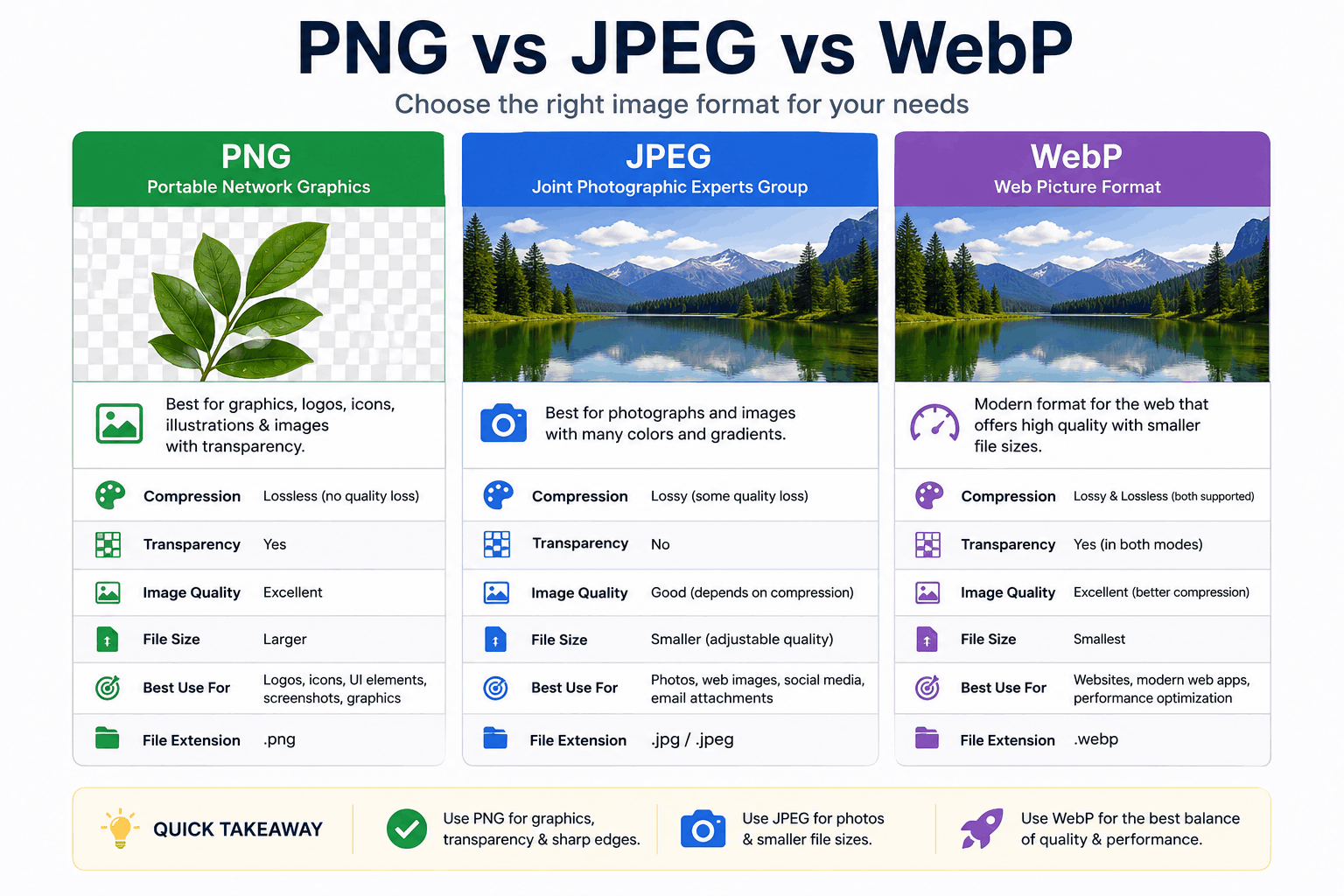
PNG vs JPEG vs WebP: Which Image Format Should You Use?
PNG, JPEG and WebP each win in different situations. Here's a clear, practical breakdown of when to use each — with real guidance on quality, transparency, and file size.