How to Generate a QR Code (Free, No Expiry)
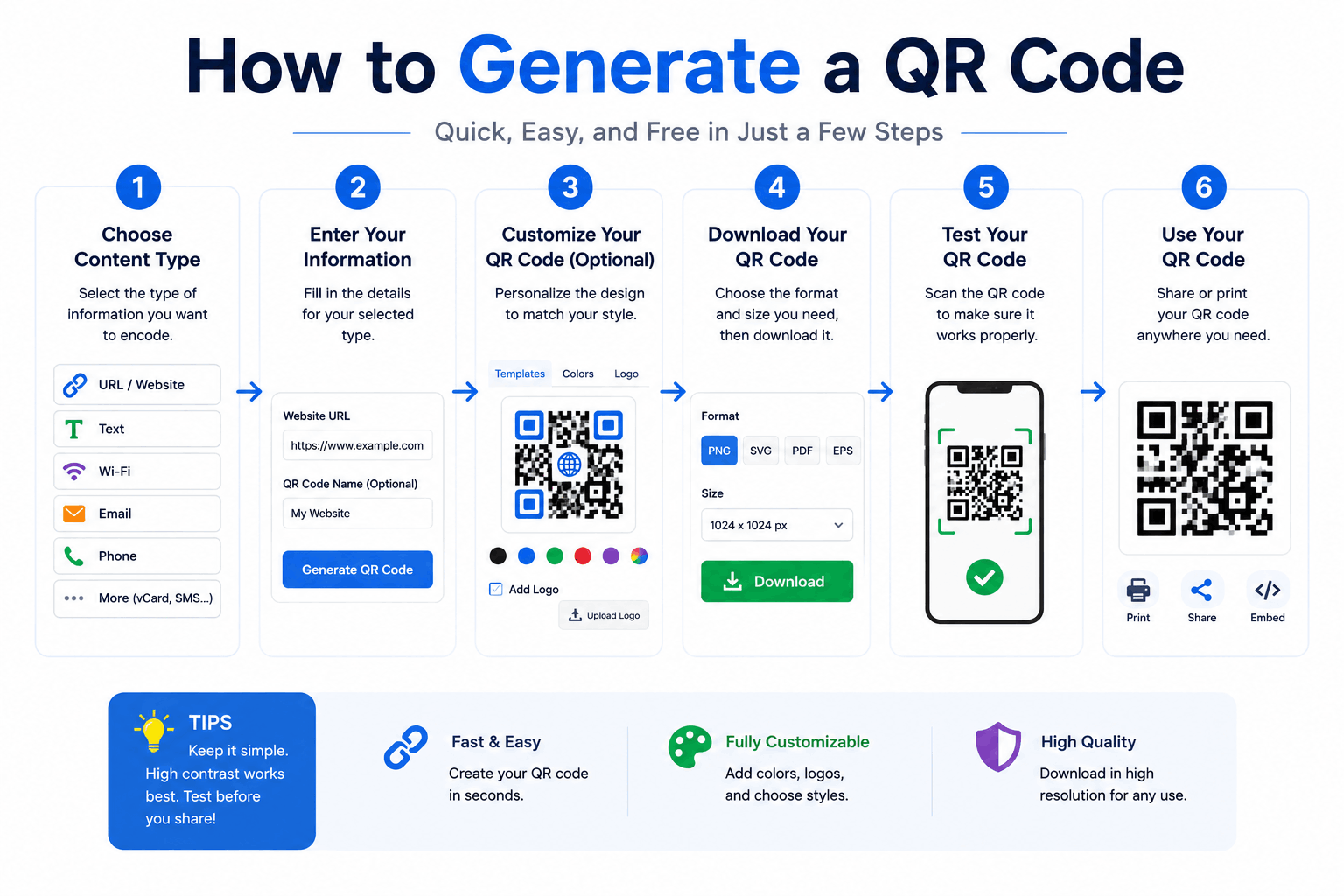
QR codes are everywhere — on menus, posters, business cards and product packaging. Making one takes seconds, but making one that scans reliably and won't stop working takes a little know-how. This guide covers both.
You can create codes free with the QR Code Generator, which builds them in your browser and lets you download as PNG or SVG.
What a QR code actually is
A QR ("Quick Response") code is a 2D barcode that stores data — most commonly a URL, but also plain text, WiFi credentials, contact details and more. A phone camera decodes the pattern and acts on it (opens a link, joins a network, etc.).
One crucial distinction:
- Static QR codes encode the data directly in the pattern. They're free, never expire, and work forever — but you can't change where they point after printing.
- Dynamic QR codes encode a short redirect URL owned by a service; the destination can be changed later, but they depend on that service staying online (and usually a subscription). If the company shuts down or you stop paying, the code breaks.
For most personal and small-business uses, a static code is the right choice — it's permanent and free. The QR Code Generator produces static codes.
Step by step
- Open the QR Code Generator.
- Choose what to encode — a URL, plain text, or WiFi network details.
- Enter your content.
- Download the result as PNG (for documents and screens) or SVG (for print and large signage — it scales without blurring).
Tips so your QR code actually scans
- Keep it big enough. A rough rule: the printed code should be at least 1/10th the scanning distance. For a poster scanned from ~2 m, that's ~20 cm. On a business card, don't go below ~2 cm.
- High contrast. Dark code on a light background scans best. Avoid light-on-dark and busy backgrounds; many scanners struggle with inverted colors.
- Leave a quiet zone. Keep clear margin (the white border) around the code — don't crowd it with text or graphics.
- Use SVG for print. PNG is pixel-based and blurs when enlarged; SVG stays razor-sharp at any size.
- Test before you print. Scan it with two or three different phones first. Reprinting 500 flyers because the code didn't scan is a painful lesson.
- Shorten long URLs. The more data, the denser (and harder to scan) the pattern. A shorter link makes a cleaner code.
Error correction, briefly
QR codes include built-in redundancy so they still scan if slightly dirty or damaged. Higher error-correction levels add more redundancy (good if you'll print a logo over the center) but make the pattern denser. For plain codes, the default level is fine; only raise it if you're overlaying a logo or expect wear and tear.
Common uses
- Menus and posters — link to a page, PDF or video.
- WiFi sharing — guests scan to join without typing the password.
- Business cards — link to your site or a contact file.
- Events — tickets, check-in links, schedules.
- Packaging — instructions, registration, reviews.
A note on privacy
The QR Code Generator builds codes entirely in your browser — your URLs, WiFi passwords and text are never sent to a server. That matters especially for WiFi codes, which embed your network password in plain form.
Frequently asked questions
Do QR codes expire?
Static codes never expire — the data is in the pattern itself. Only dynamic codes (from redirect services) can break if the service goes away.
PNG or SVG — which should I download?
SVG for anything printed or large (it scales perfectly). PNG for screens, emails and quick use.
Can I make a QR code for my WiFi?
Yes — choose the WiFi option, enter the network name and password, and guests can scan to connect. Generate it privately so the password stays on your device.
Is there a scan limit or fee?
No. Static codes have no scan limits and cost nothing to use, forever.
Make it, test it, print it big and high-contrast. Start with the free QR Code Generator — static, permanent, and private.
Related Articles
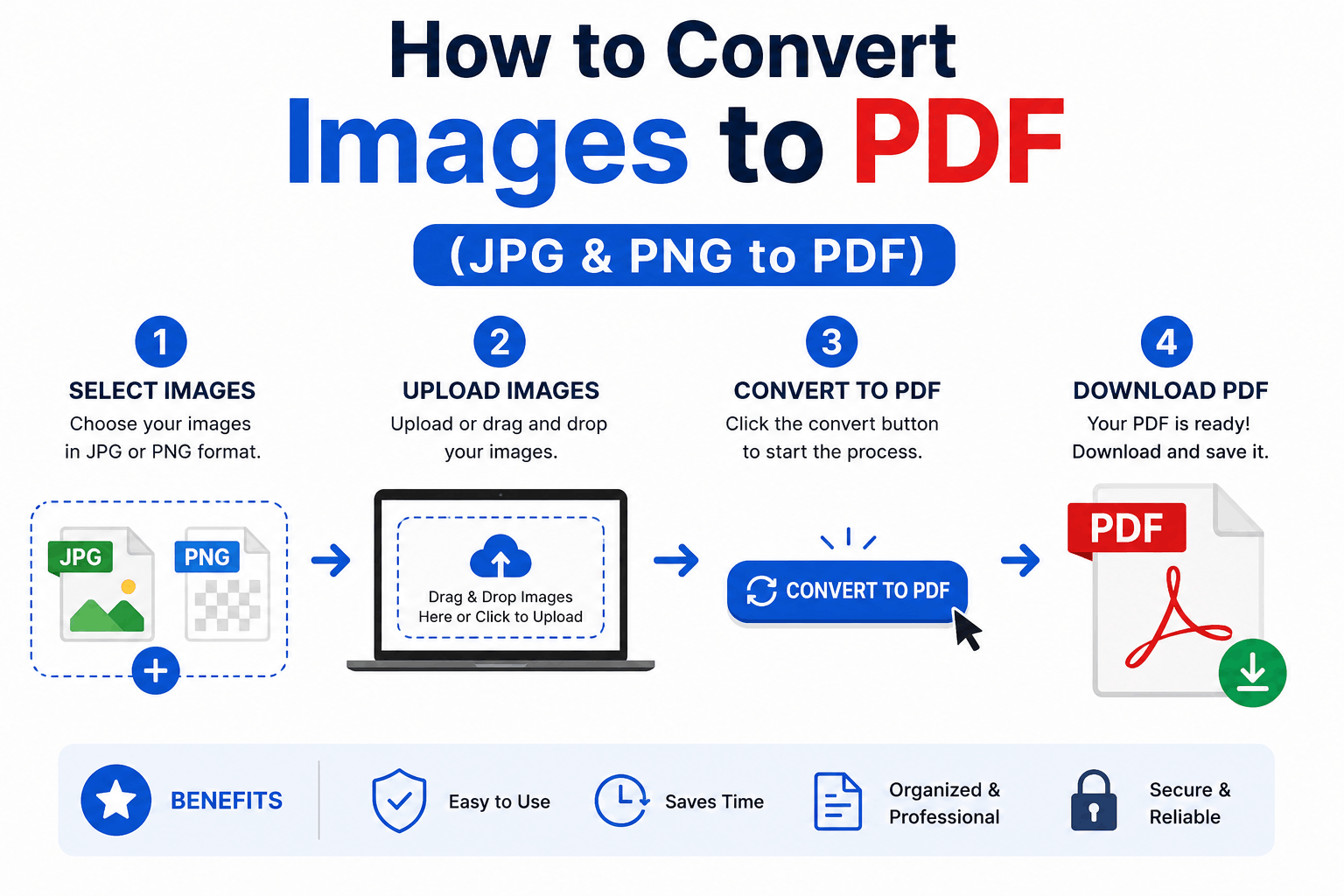
How to Convert Images to PDF (JPG & PNG to PDF)
Turn one or many JPG, PNG or WebP images into a single, tidy PDF — with the right page order, size and margins. Free and entirely in your browser.
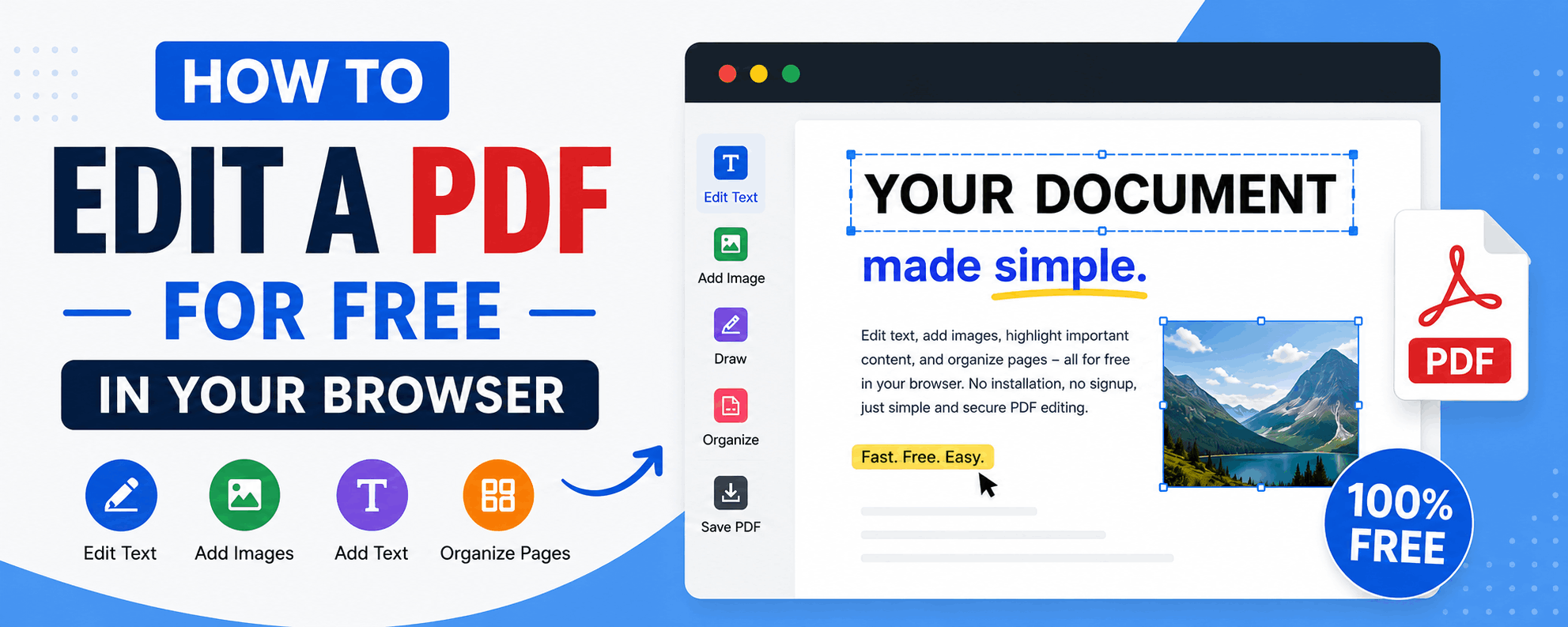
How to Edit a PDF for Free in Your Browser
Reorder, rotate and delete pages, add text and highlights, sign documents and fill forms — all for free in your browser, with no upload and no watermark.
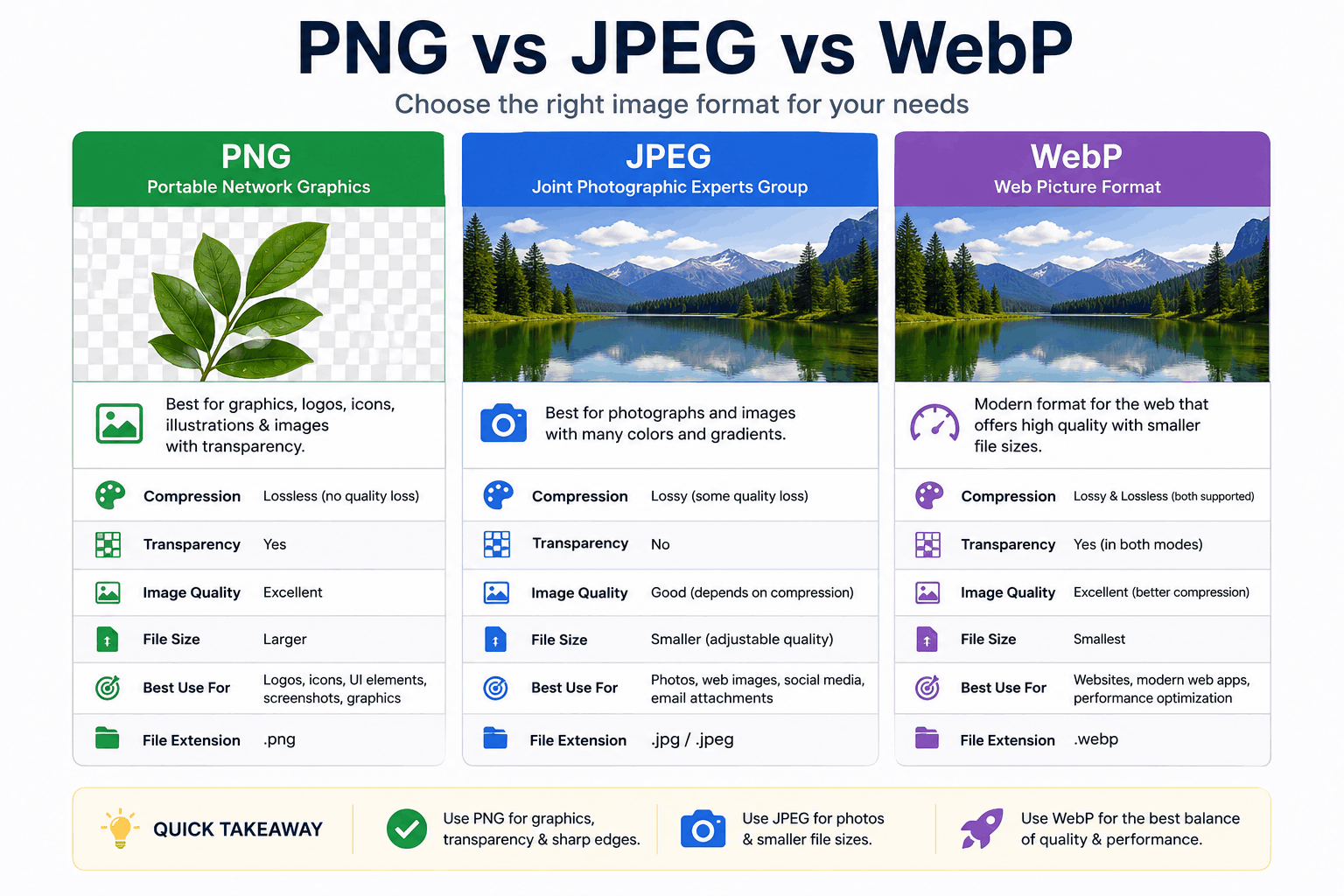
PNG vs JPEG vs WebP: Which Image Format Should You Use?
PNG, JPEG and WebP each win in different situations. Here's a clear, practical breakdown of when to use each — with real guidance on quality, transparency, and file size.